Sidify Amazon Music Converter


How to Enable Dolby Atmos on Amazon Music
Learn how to enable Dolby Atmos on Amazon Music step by step and enjoy immersive Ultra HD audio offline anytime, anywhere.

Amazon Music provides Unlimited users with a premium listening experience, including Dolby Atmos spatial audio and Ultra HD high-resolution sound for immersive 3D surround sound and high-quality audio. However, these features are not enabled by default on all devices and settings.
In this article, you will learn step by step how to enable Dolby Atmos on Amazon Music, which devices support this feature, and the key differences between Dolby Atmos and Ultra HD. You will also discover how to save Dolby Atmos songs for unlimited offline playback on any device.
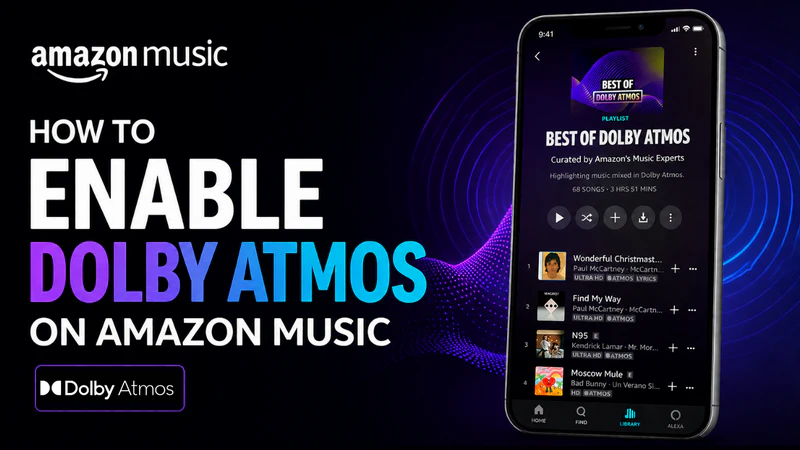
What Devices Support Amazon Music Dolby Atmos?
Before diving into the settings, you need to check your hardware first. If your device isn't supported, the Amazon Music app won't even display the Dolby Atmos toggle or indicator. Currently, the devices officially supported by Amazon for Dolby Atmos spatial audio primarily fall into the following categories:
- iOS Devices (iPhone & iPad)
- Android Devices
- Fire Tablet (Fire OS 6 or later)
- Fire TV Devices
- Echo Studio
- Sonos Devices (Sonos Arc, Beam Gen 2, or Era 300)
- Compatible Headphones and Home Audio Systems
 Note:
Note:
Currently, Dolby Atmos is not available on Amazon Music desktop apps. If you want to break free from device limitations and enjoy high-quality audio on any computer, you can use Sidify Amazon Music Converter to download Dolby Atmos audio for an immersive listening experience.
How to Play Dolby Atmos on Amazon Music
To play Dolby Atmos content on Amazon Music, you need to ensure that your account, device, and app settings all meet the requirements. Once you have confirmed hardware compatibility, simply activate the feature manually within the Amazon Music app. Most importantly, the Dolby Atmos feature is available only with an Amazon Music Unlimited subscription. Follow the steps below to enable and experience spatial audio:
iPhone
-
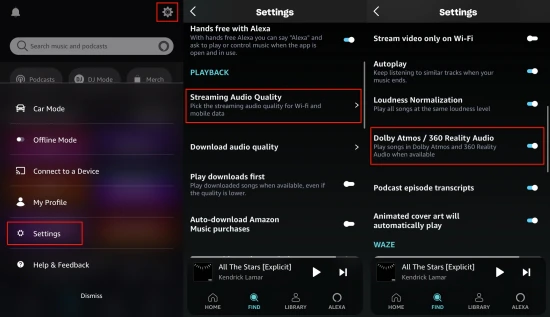
Step 1Launch the Amazon Music app on your phone and log in to your Amazon Music Unlimited account.
-
Step 2Click the gear icon in the top-right corner and select "Settings" from the pop-up menu.
-
Step 3Scroll down the settings list, locate the "Streaming Audio Quality" option, and tap on it.
-
Step 4Toggle Dolby Atmos/360 Reality Audio to ON.
-
Step 5Play songs marked with the Dolby Atmos badge and make sure a compatible device is connected to enjoy an immersive audio experience.
Once enabled within the app, iOS will automatically enable Dolby Atmos playback when you connect compatible Apple headphones that support Spatial Audio, such as AirPods Pro, AirPods Max, or Beats devices.
Android
On Android devices, in addition to the settings within the Amazon Music app, you also need to enable the system-level Dolby Atmos feature to enjoy the full spatial audio experience.
1. Enable in Amazon Music App (Same as iPhone)
2. Turn on Dolby Audio on Your Android Device
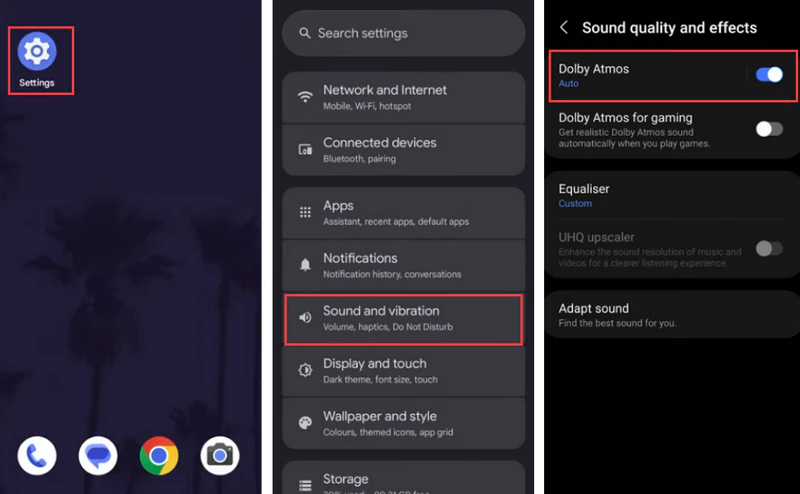
When enabling Dolby Atmos on Android, note that menu names may vary slightly depending on the phone brand. The following steps use a Samsung device as an example.
-
Step 1Open the "Settings" app on your Android phone.
-
Step 2Go to "Sound and Vibration" and find "Sound quality and effects".
-
Step 3Locate Dolby Atmos and toggle it on.
-
Step 4Find and Play Dolby Atmos Songs.
TV
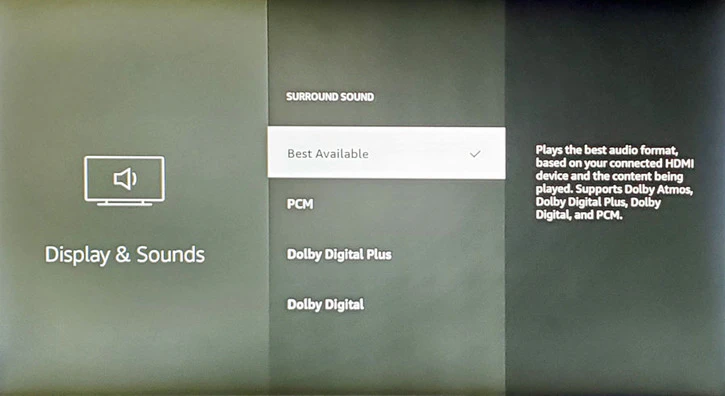
On TVs that support Dolby Atmos, you can play Spatial Audio content from Amazon Music by following these steps, using Fire TV as an example.
-
Step 1Go to your TV’s system settings, navigate to Display and Sound
-
Step 2Select Audio or Surround Sound, and set it to Best Available or Dolby Digital Plus.
-
Step 3Open the Amazon Music app on your Fire TV and go to the top right corner to click the Settings icon.
-
Step 4Turn on both Audio Quality and Spatial Audio.
-
Step 5Select a song or playlist marked with the "Dolby Atmos" logo from your music library and tap to play it directly.
Amazon Music Dolby Atmos vs. Ultra HD: What's the Difference?
When browsing high-quality music on Amazon Music, you will see gold "Atmos" or "Ultra HD" badges next to the songs. To help you better understand the differences between the two, we have compiled a detailed comparison table below:
| Feature | Dolby Atmos | Ultra HD |
|---|---|---|
| Audio Type | Spatial audio (3D immersive sound) | High-resolution lossless audio |
| File Format | EAC3 / AC4 | FLAC |
| Audio Quality | Up to 24-bit / 48 kHz | Up to 24-bit / 192 kHz |
| Listening Experience | Immersive, cinematic, and directional | Pure, detailed, studio-like sound |
| Use Case | Best for Pop, EDM, Rock, and spatial sound with Dolby Atmos-enabled devices | Best for Classical, Jazz, Acoustic, and critical listening with wired or high-fidelity headphones |
Dolby Atmos delivers a spatial, immersive 3D audio experience, while Ultra HD focuses on high-resolution, detailed sound quality.
Best Way to Keep Amazon Music Dolby Atmos & Ultra HD Songs Offline
Although Amazon Music Unlimited offers offline downloads, the files can only be played within the official app and cannot be exported to other devices. Once the subscription expires, offline playback also becomes unavailable. If you want to save Ultra HD and Dolby Atmos music as local files for long-term use and playback across different devices, you can use Sidify Amazon Music Converter for more flexible music management and listening.
Sidify Amazon Music Converter is designed to download and convert Amazon Music songs, albums, playlists, and podcasts into FLAC, MP3, WAV, AAC, AIFF, ALAC, EAC3, or AC4. It preserves the original HD and Ultra HD audio quality, retains ID3 tags (such as title, artist, album, and cover art), and supports saving Dolby Atmos and Spatial Audio tracks as local files for offline playback on various devices.
Sidify Amazon Music Converter
- Supports Dolby Atmos and Spatial Audio sound quality.
- Convert Amazon Music to MP3, AAC, WAV, FLAC, AIFF, ALAC, EAC3, AC4.
- Keep original HD / Ultra HD audio quality.
- Preserve complete ID3 tags and export lyrics.
- Batch download Amazon Music at 10× faster speed.
 Security verified.
-
Step 1Launch Sidify Amazon Music Converter
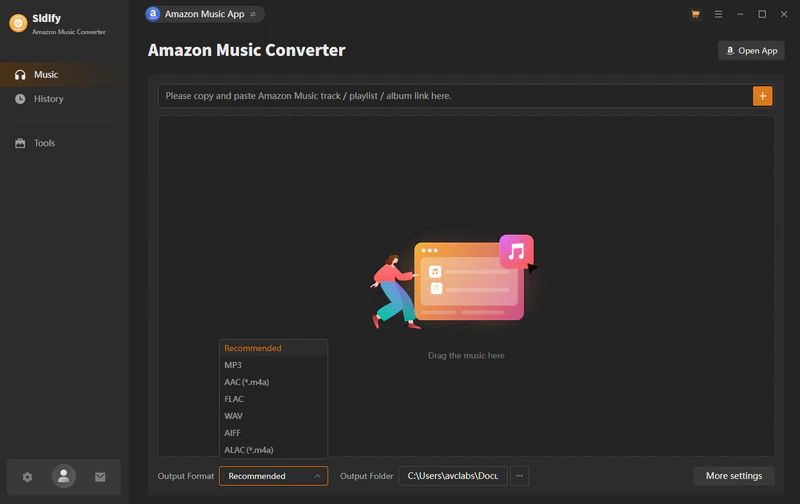
Install and launch Sidify Amazon Music Converter on Windows or Mac, select the "Amazon Music Web Player" mode, and then log in to your Amazon Music Unlimited account.
-
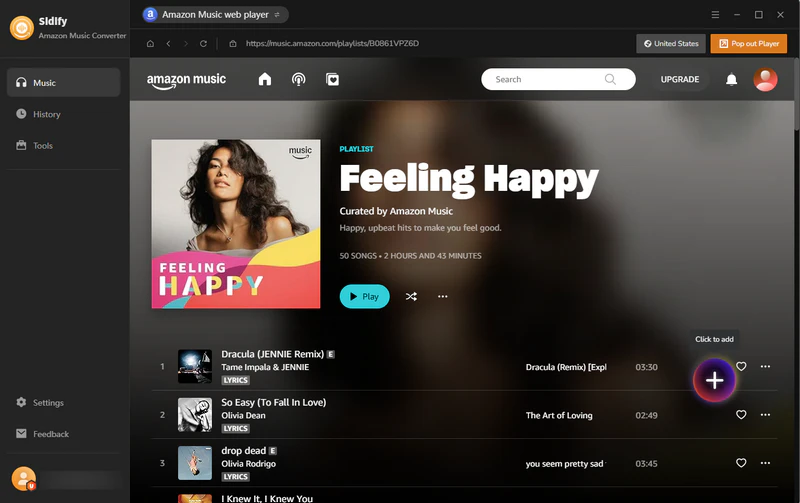
Step 2Add Songs, Albums, or Playlists to Sidify
Click the "+" button to add Amazon Music to Sidify for conversion.
-
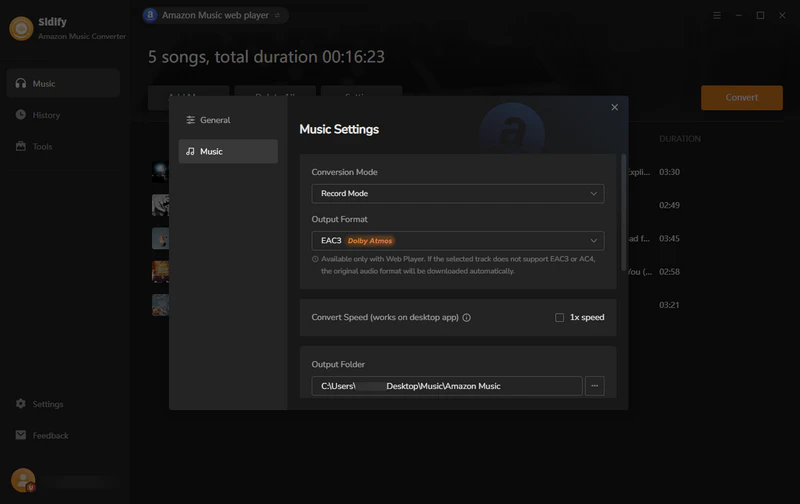
Step 3Select EAC3 as the Output Format
Navigate to the Music Settings page and choose EAC3 as the output format.
-
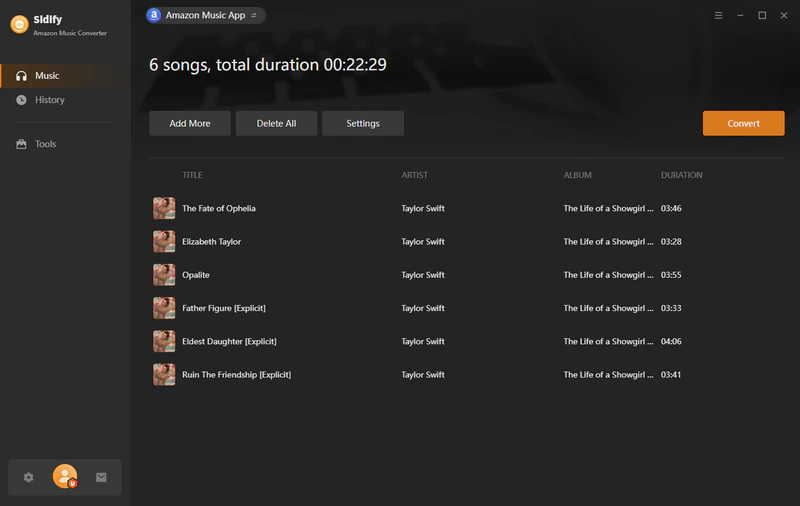
Step 4Start Conversion
Click the "Convert" button to begin downloading and converting Amazon Music tracks to local files.
-
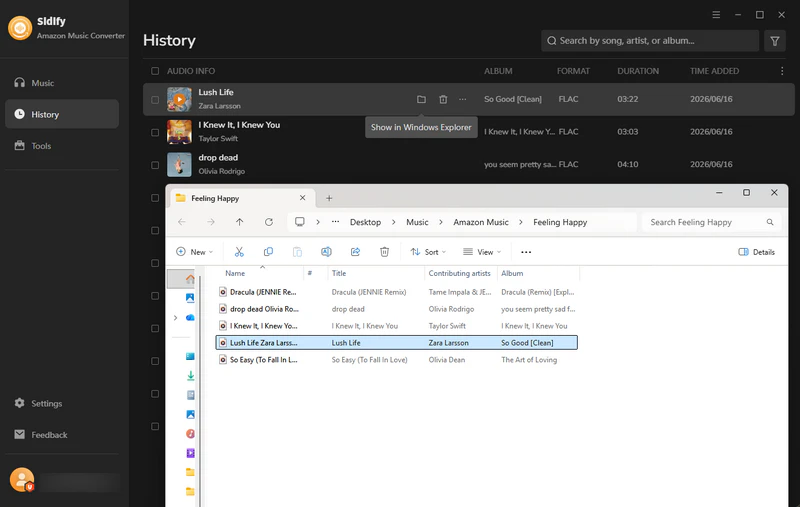
Step 5Check Downloaded EAC3 Amazon Music Files
Once the conversion is complete, go to the "History" section to view the downloaded EAC3 files.
FAQ about Amazon Music Dolby Atmos
Why can’t I find Dolby Atmos on my device?
Dolby Atmos is only available on supported devices and requires an active Amazon Music Unlimited subscription. If your device is not compatible or you are not subscribed, the Dolby Atmos option will not appear in the Amazon Music app.
Can I keep Dolby Atmos music permanently offline?
Yes. With Sidify Amazon Music Converter, you can save Dolby Atmos music as local audio files for long-term offline use. This allows you to keep and play your music on different devices without relying on the Amazon Music app or an active internet connection.
Conclusion
By properly setting up your device, you can easily enable Dolby Atmos on your iPhone, Android phone, and TV, and enjoy a high-quality Amazon Music listening experience. If you want to keep your favorite Dolby Atmos tracks forever and enjoy them without platform limitations, Sidify Amazon Music Converter can help you save tracks as local files for playback on different devices anytime.
Sidify Amazon Music Converter
Save Amazon Music Dolby Atmos and HD/Ultra HD audio with ID3 tags at 10X speed.
Sidify Amazon Music Converter
Convert Amazon Music to MP3, AAC, WAV, FLAC, AIFF, ALAC, EAC3, or AC4 formats with original high quality kept.