Spotify is one of the most popular streaming music platforms in the world, supporting playback on multiple platforms, including Windows, Mac, iOS, and Android. Although many users are accustomed to using mobile apps to listen to music, in fact, using Spotify on the PC can bring more advantages and convenience. This article will introduce in detail the functional advantages of the desktop version of Spotify compared to the mobile version, and recommend a practical tool - Sidify Music Converter, to help you make full use of the powerful capabilities of the PC.
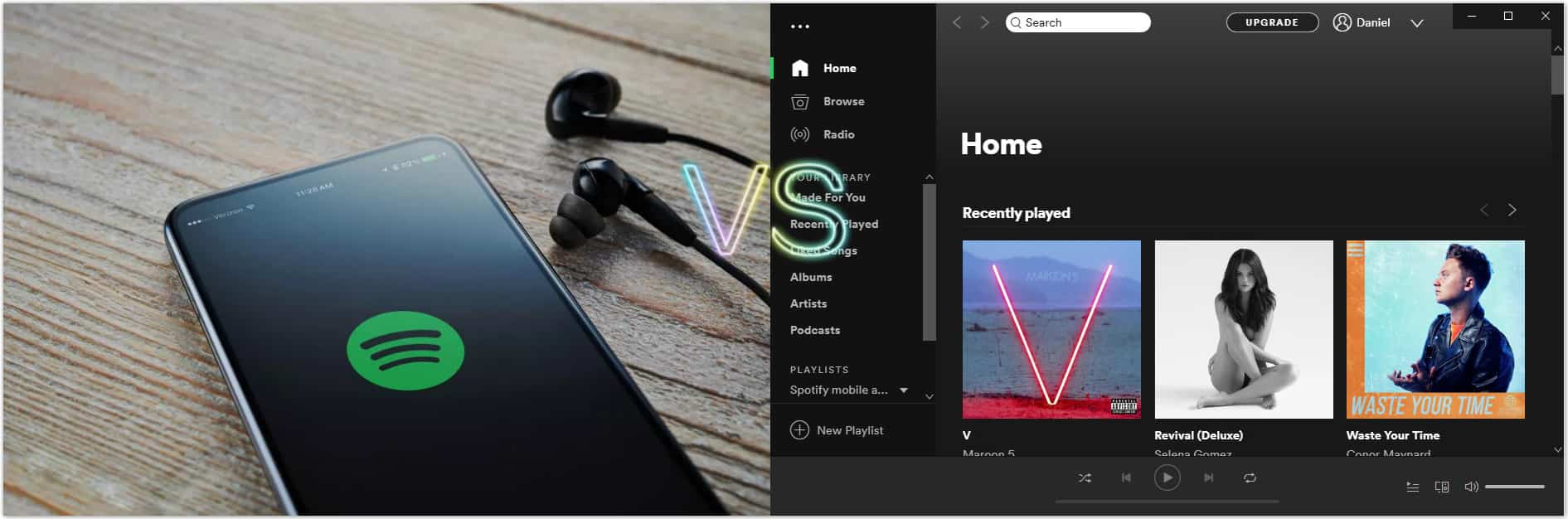
In Spotify's mobile app, free users cannot play single songs at will, can only play randomly, and will be frequently inserted with ads. In the PC desktop version, free users can also freely choose to play any song and skip songs more times, which greatly improves the user experience.
Spotify supports high-quality streaming playback up to 320kbps on the desktop platform (for Premium users), which is better than the default sound quality of mobile devices. In addition, the PC network environment is more stable, and there are fewer problems with freezing and buffering when listening to songs.
The PC version of Spotify allows users to import local MP3, M4A and other format files into the player and mix them with streaming music, but the mobile version does not support this function. This provides users with a more flexible way to organize and play music.
The most important part for the PC version is, you can generate the songs to other formats and save them to your local drive! Ever wondered how to keep listening your favorite songs after your Spotify subscription gets expired? Here is the magic tip that helps achieving it:

If you want a tool to convert any streaming music (including Spotify, Apple Music, Amazon Music, Tidal, Deezer, YouTube, YouTube Music, SoundCloud, DailyMotion …) to MP3, Sidify All-In-One is the go-to choice.
Step 1Launch Sidify Music Converter
Run Sidify Music Converter, you will access the modern interface of the program.
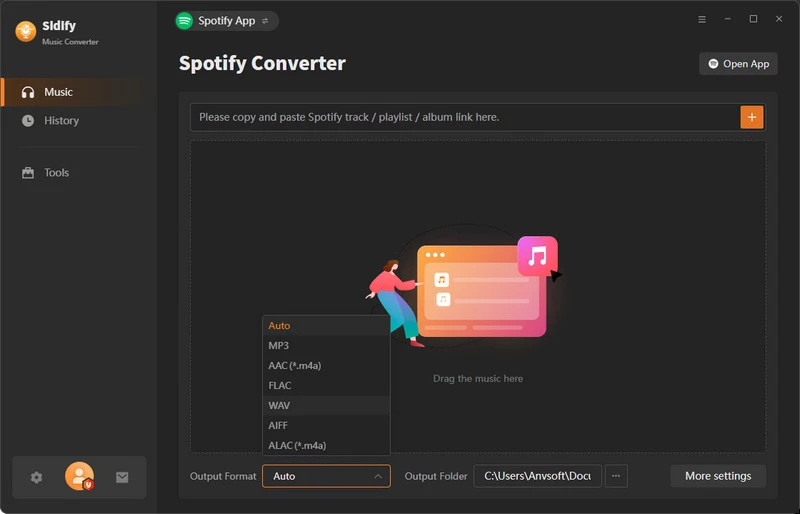
Step 2: Import Spotify Music to Sidify Converter
Click on  icon and then drag and drop any song or playlist from Spotify to Sidify adding window.
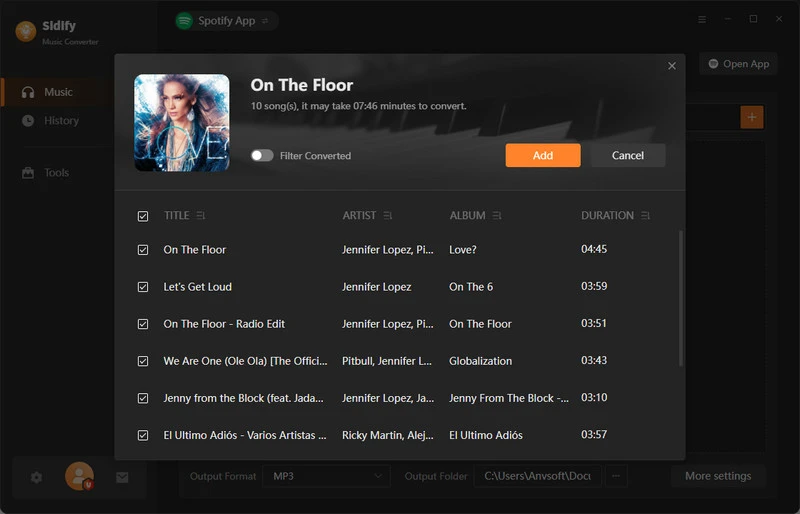
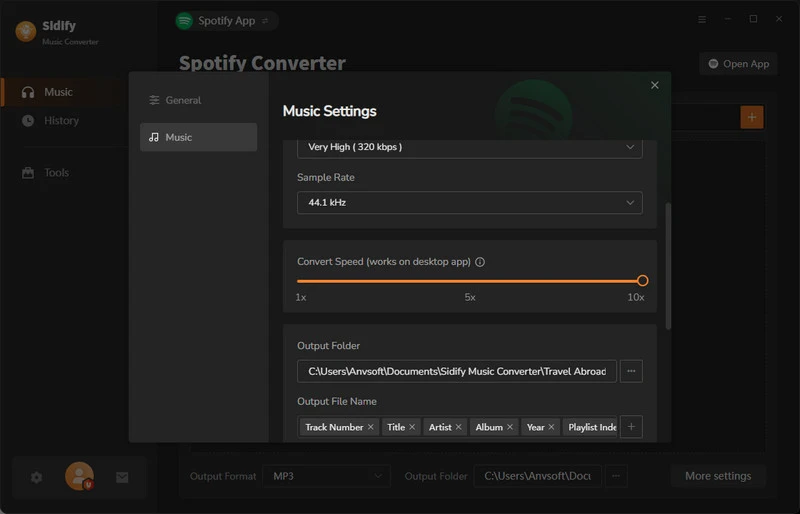
Step 2: Adjust Output Setting
Click setting button to change the basic parameters (Including Output format, Output quality, Conversion mode, etc.).
Tips : If you are a Premium user of Spotify music, you are allowed to stream up to 320kbps music on Spotify, so you can use our Sidify program to download music from Spotify with up to 320kbps quality.
Step 3: Convert Spotify Music to Plain Audio Format
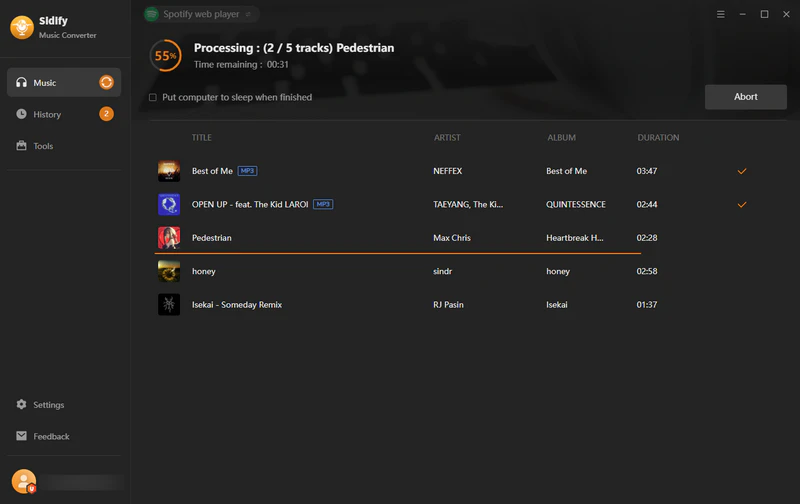
Tap the Convert button to start downloading Spotify music to plain format with ID3 tags kept after conversion.
Step 4: Find Converted Spotify Music
After conversion, you can click on the "History" button to easily find the well-downloaded MP3/AAC/WAV/FLAC/AIFF/ALAC file in the top right corner.
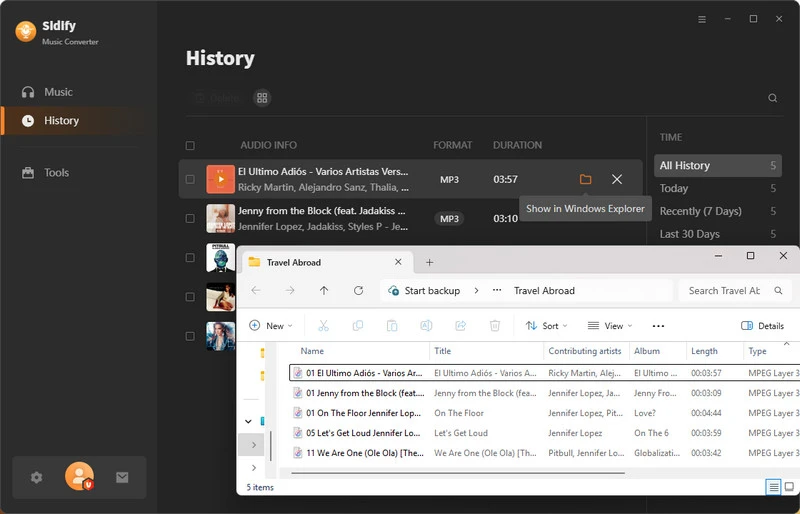
Now, all streamed Spotify music are converted to MP3, AAC, FLAC, WAV, AIFF or ALAC format, so you can easily transfer them to other devices or share your favoriate playlists with your family and friends.
Compared with the mobile version, Spotify on the PC platform not only provides a higher degree of freedom in playing, but also supports more comprehensive music management functions. With Sidify Music Converter, you can permanently save your favorite Spotify songs on your computer, and achieve cross-device playback and offline listening freedom. If you want to manage and use Spotify music more deeply, the desktop version is undoubtedly a better choice.