Sidify Tidal Music Converter


Tidal to FLAC: How to Download Tidal Music to Lossless FLAC
Convert Tidal music to lossless FLAC with complete ID3 tags and album artwork.

Tidal supports FLAC and Hi-Res FLAC audio, making it a popular streaming platform among Hi-Fi enthusiasts. Would you like to download Tidal music as local FLAC files for high-quality offline playback across multiple devices?
This article introduces how to download and convert Tidal Music to lossless FLAC format with the best Tidal FLAC downloaders, helping you break free from platform restrictions and enjoy pristine audio quality on any device.
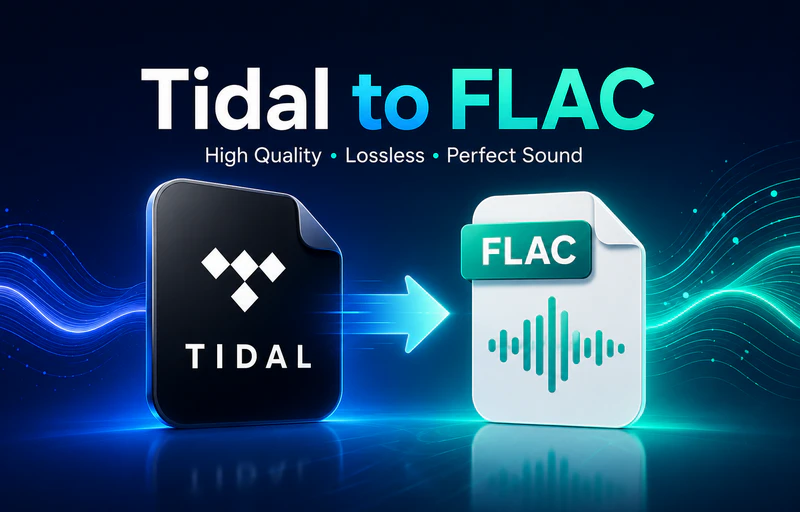
Can You Download FLAC from Tidal Directly?
The answer is: Tidal does not support exporting FLAC files directly.
Tidal supports FLAC and Hi-Res FLAC audio streaming for users with subscription plans, allowing listeners to enjoy high-fidelity music with rich detail and lossless sound quality. It also provides an offline download feature in its mobile app and desktop client for offline playback. However, these downloads are encrypted and can only be played within the Tidal application and will become inaccessible once your subscription expires.
If you want to save Tidal music as local, lossless FLAC files that can be transferred and played on any device, you will need a professional Tidal to FLAC converter.
Best Way to Download Tidal Music to Lossless FLAC
Among the many Tidal to FLAC converters, Sidify Tidal Music Converter stands out as a widely used and reliable solution. Instead of being restricted to the Tidal app, it allows users to convert and save music as local FLAC files for playback on different devices without platform limitations, while perfectly restoring all the details of the music.
2.1 Sidify Tidal Music Converter
Sidify Tidal Music Converter is a professional Tidal music downloader that supports downloading and converting Tidal songs, albums, and playlists into MP3, AAC, WAV, FLAC, AIFF, and ALAC. It preserves the original audio quality, allowing you to convert Tidal music into lossless FLAC or Hi-Res FLAC formats with ease.
In addition, it supports both desktop app and web player modes, giving you flexible options to convert Tidal music to FLAC depending on your needs. Sidify also offers up to 10× faster batch conversion, allowing you to download entire playlists or albums at once. It keeps full ID3 tags, including song title, artist, album, track number, and album artwork, making music management simple and well-organized.
Sidify Tidal Music Converter
- Download Tidal Music in lossless FLAC or Hi-Res FLAC
- Convert Tidal to MP3, FLAC, AAC, WAV, ALAC, or AIFF
- Keep full ID3 tags and export the lyrics after conversion
- Support batch downloading Tidal music at 10X speed
- Free updates and technical support

 Security verified.
Our actual test showed a smooth and straightforward experience, with an easy setup and a clear workflow from login to conversion. It performs stably when handling batch playlists and delivers fast conversion speeds without requiring technical configuration. The output also maintains excellent audio quality, preserving the original Tidal lossless sound without any noticeable loss.
How to Download FLAC from Tidal with Sidify Tidal Music Converter?
-
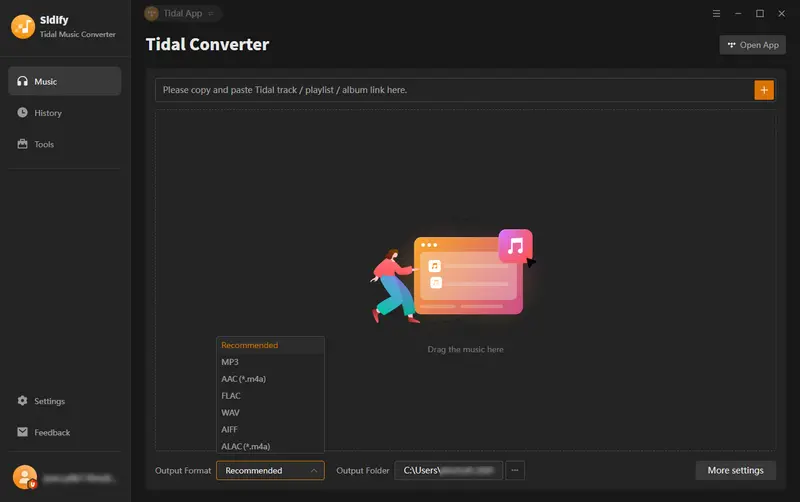
Step 1Open Sidify Tidal Music Converter
Install and open Sidify Tidal Music Converter on your Windows or Mac computer, and log in to your Tidal account.
-
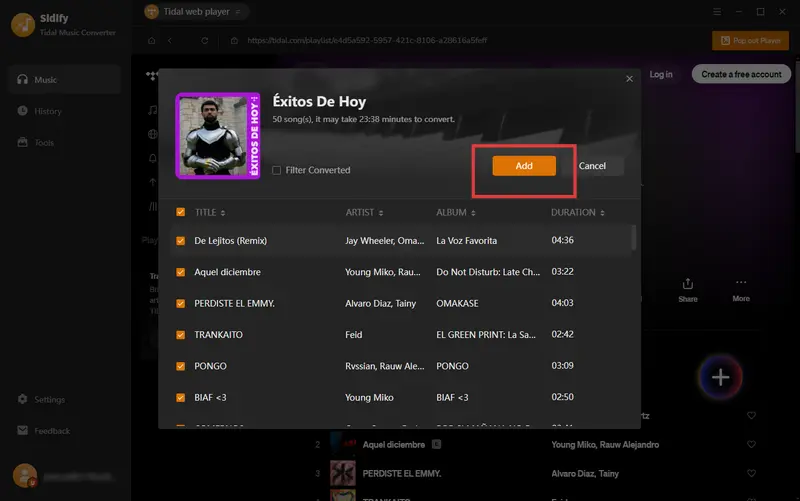
Step 2Add Tidal Music to Sidify
Locate and open the details page for the songs, albums, or playlists you wish to download, then click the "+" button to add them to Sidify for conversion.
-
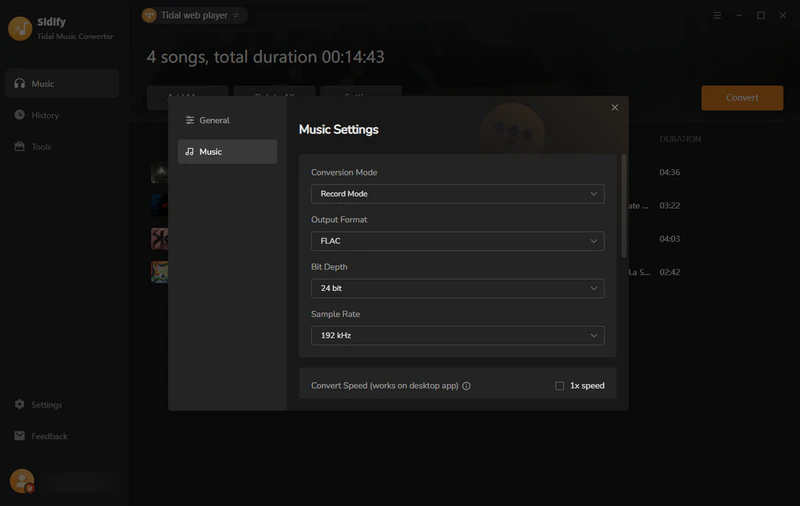
Step 3Select FLAC as the output format
Go to the Music Settings page and select FLAC as the output format. You can also customize the output filename (title, artist, album, year, etc.), output folder, and other settings according to your needs.
-
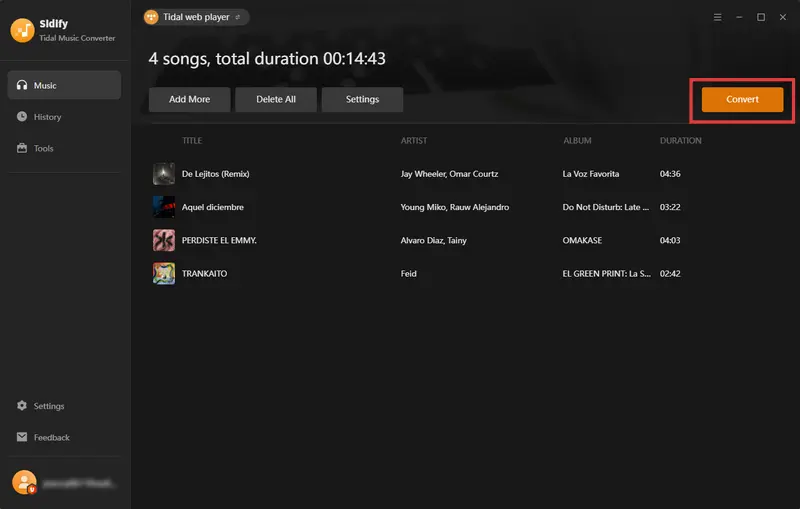
Step 4Start converting Tidal music
Click the "Convert" button to start downloading and converting Tidal music into FLAC files.
-
Step 5Locate Downloaded Tidal FLAC Files
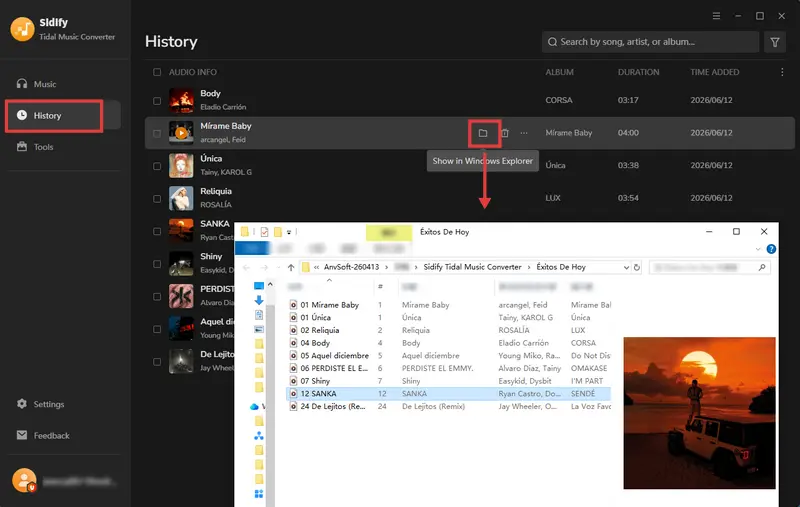
1. Once finished, go to the History page to locate the downloaded FLAC files by clicking the file icon and enjoy lossless FLAC playback on any device.
Alternative Tidal FLAC Downloaders
In addition to Sidify Tidal Music Converter, there are other Tidal FLAC Downloaders available, each varying in features, usability, and target users. Below are two alternative solutions for converting Tidal to FLAC.
3.1 Sidify All-in-One Converter
Sidify All-in-One Converter is a multi-platform music downloader that supports downloading and converting music from all major streaming platforms like Tidal, Spotify, Apple Music, Amazon Music, and more into various audio formats, including MP3, AAC, WAV, FLAC, AIFF, and ALAC.
Unlike single-platform tools, it offers a unified solution for multiple music sources. For Tidal users, it also supports downloading and converting Tidal music to lossless FLAC or Hi-Res FLAC formats, while preserving the original audio quality and complete metadata. In addition, it supports batch conversion, allowing users to download full playlists or albums in one go for better efficiency.
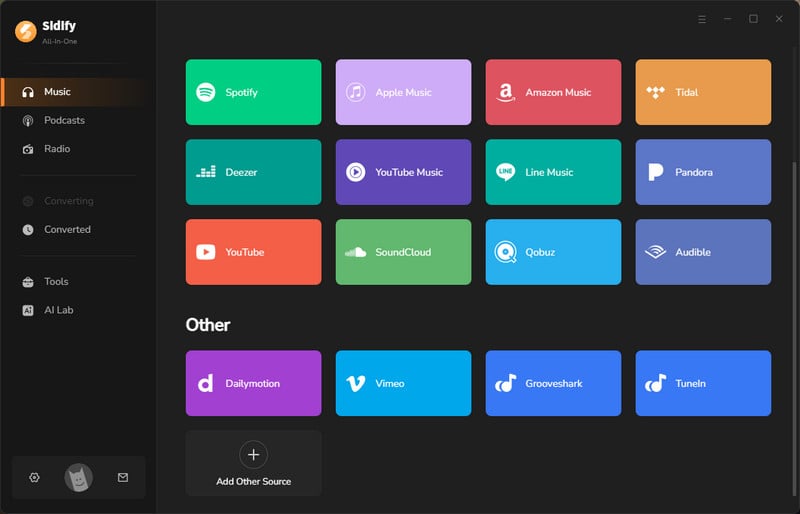
Sidify All-in-One is stable and easy to use, with a simple setup and smooth switching between platforms like Tidal and other streaming services. It supports batch downloads efficiently and outputs high-quality FLAC files with full ID3 tags preserved.
How to Convert Tidal to FLAC with Sidify All-in-one Converter?
-
Step 1Launch Sidify All-in-One Converter and select Tidal from the list of supported platforms.
-
Step 2Log in to your Tidal account and browse the music library. Then click the “+” button to add the songs, albums, or playlists you want to download for conversion.
-
Step 3Click the Settings button to enter the Tidal Music settings page and select FLAC as the output format.
-
Step 4Click "Convert" to start downloading Tidal music to local FLAC files at high speed.
3.2 Tidal-gui
Tidal-gui is a free and open-source Tidal music downloader that is part of the Tidal-Media-Downloader project. It allows users to download songs, albums, playlists, and videos from Tidal in various audio formats, including FLAC, MP3, AAC, and WAV. You can search for music directly within the tool or simply paste Tidal URLs to download content. It also supports batch downloading and preserves metadata such as song titles, artists, albums, track numbers, and cover artwork. For Windows users who are on a budget and have some technical experience, Tidal-gui is a free Tidal download solution worth trying.
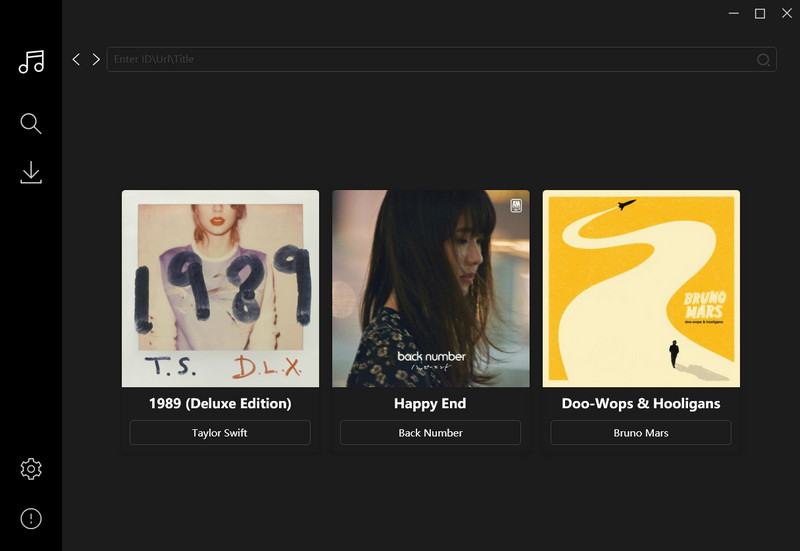
In actual use, Tidal-gui is more complicated to set up than Sidify and requires some configuration. It is Windows-only and limited to 1× download speed, which makes large playlist downloads relatively slow. Overall, it works but feels more technical and less smooth than a one-click solution.
How to Download Tidal to FLAC with Tidal-gui?
-
Step 1Download and install Tidal-GUI on your Windows computer.
-
Step 2Launch the program and log in to your Tidal account.
-
Step 3Search for the song, album, or playlist you want to download, or paste a Tidal URL into the search box.
-
Step 4Select FLAC as the output format and configure the download settings.
-
Step 5Click the Download button to start downloading Tidal music to FLAC files.
Comparison: Which Tidal to FLAC Converter is best for you?
All the tools mentioned above can be used to convert Tidal music to FLAC, though they differ in terms of ease of use, output quality, speed, and use case. The comparison table below will help you choose the tool that best suits your needs.
| Tools | Sidify Tidal Music Converter | Sidify All-in-One Converter | Tidal-Gui |
|---|---|---|---|
| Output quality | Lossless FLAC / HiRes FLAC | Lossless FLAC / HiRes FLAC | Lossless FLAC |
| Conversion speed | 10× | 10× | 1× |
| ID3 Tags | ✅ | ✅ | ✅ |
| OS Compatibility | Windows / Mac | Windows / Mac | Windows |
| Ease of use | Easy | Easy | Medium |
| Best for | Most users | Multi-platform music users | Technical users |
Tidal FLAC vs Other Formats
When downloading or converting Tidal lossless music, choosing the right audio format directly affects sound quality, file size, and device compatibility. FLAC differs significantly from other common formats such as MP3, AAC, WAV, and ALAC.
Tidal FLAC vs MP3 / AAC: MP3 and AAC are lossy formats (up to 320kbps) that result in a loss of audio detail, whereas FLAC is a lossless format that preserves audio quality more fully.
Tidal FLAC vs WAV: WAV is also a lossless format, but it results in larger file sizes and typically does not support album art. FLAC offers a smaller file size while maintaining lossless audio quality and supports full metadata tagging.
Tidal FLAC vs ALAC: ALAC is primarily used within the Apple ecosystem and has limited cross-platform compatibility. FLAC is an open format with better compatibility across Windows, Android, in-car systems, and Hi-Fi equipment.
Overall, FLAC strikes the best balance between sound quality restoration, file size control, and device compatibility, making it the most practical choice for saving and managing Tidal music.
FAQs About Tidal to FLAC
Is Tidal FLAC really lossless?
Yes. Tidal FLAC and Hi-Res FLAC are lossless audio formats, meaning they preserve the original recording quality without removing audio data. When streamed or downloaded through Tidal, the audio is delivered in its original high-fidelity form.
Do Tidal FLAC downloaders reduce audio quality?
No. Both Sidify and Tidal-GUI are designed to preserve the original audio quality during conversion, so the output remains close to the original Tidal streaming quality.
Can I still play downloaded FLAC files after my Tidal subscription expires?
Yes. Once Tidal music is downloaded using a tool like Sidify, the files are saved locally and can be kept permanently, even if your subscription expires. You can also transfer them to other devices for offline use.
Is Tidal-gui from GitHub safe to use?
It depends. Open-source tools like Tidal-gui are generally transparent and widely used, but they require manual setup and are not officially supported. This means the user experience and safety level can vary depending on how they are installed and configured.
What is the best Tidal to FLAC converter?
The best Tidal to FLAC converter is Sidify Tidal Music Converter. It is widely used for converting Tidal songs, albums, and playlists into lossless FLAC or HiRes FLAC format while preserving original audio quality and metadata such as title, artist, album, and cover art.
Conclusion
Although Tidal offers high-quality streaming in FLAC and Hi-Res FLAC formats, it does not support exporting music as local FLAC files; offline downloads are restricted to playback within the official app and are tied to your subscription.
If you wish to save Tidal music as local FLAC files for free playback and management across various devices, using a professional Tidal FLAC converter is the most practical solution. Sidify Tidal Music Converter is a popular choice among users due to its ease of use, stable output, and excellent audio quality retention. Additionally, Sidify All-in-One and Tidal-gui serve as alternative options depending on specific needs.
Overall, while different tools suit different users, Sidify remains the more intuitive and efficient choice for both audiophiles and average users.
Sidify Tidal Music Converter
Batch download Tidal Music to lossless FLAC and other popular format for offline listening on any device.
Sidify TIDAL Music Converter
Download Tidal music to MP3, AAC, WAV, FLAC, AIFF, or ALAC with original quality, 10× speed, and full ID3 tags for offline use on any device.