
If you’re a DJ who stores most of your music on Spotify, you’ve probably asked: Which DJ software that works with Spotify is reliable? For years, Spotify's policy changes made it tough to blend tracks with DJ tools, and many third-party apps lost integration. There are more ways than ever to turn your Spotify playlists into DJ sets.
This guide breaks down everything you need to know, from compatible DJ software to offline mixing hacks, so you can keep the party going without limits. Just keep reading!
The biggest win for DJs is the return of Spotify integration to three major DJ platforms. After years of being unavailable, these tools now let you access your entire Spotify library directly.
Serato DJ now supports Spotify Premium, making it easy for existing users to pull playlists, DJ mixes, and favorite tracks into the software. You’ll need a stable internet connection (offline mode isn’t supported) and a Premium account (ads would ruin your sets). A small limitation: Serato currently lets you use only one streaming service at a time. You can’t edit Spotify playlists within Serato, so manage those in the Spotify app first.
Pioneer DJ’s Rekordbox joins the list of DJ software that works with Spotify, ideal for DJs using Pioneer hardware (like CDJs or controllers) in performance mode. The integration lets you browse Spotify’s catalog, including editorial playlists tailored for DJs (e.g., house, techno, or hip-hop mixes). Like Serato, you’ll need Spotify Premium, and tracks won’t work offline.
Djay Pro is one of the first DJ apps to support Spotify before integration ended. It has full access to your Spotify music and advanced features like AI-powered beatmatching and stems control (for isolating vocals, drums, or bass). Djay Pro is user-friendly for DJs who switch between laptop and mobile setups.
If you’re not a professional DJ but want to mix Spotify tracks for a party, you don’t need expensive software. Here are two accessible options:
Spotify has a hidden “DJ Mode” for Premium users. It’s perfect for casual gatherings where you want smooth transitions. To use it:
1. Open Spotify app and go to Preferences > Playback, then toggle on “Crossfade Tracks” (adjust the fade length to 2–4 seconds for natural transitions) and “AutoMix”.
2. Download the playlist for offline use (via “Offline Mode”) to avoid WiFi drops.
📍 The downside?
- It doesn’t do precise beatmatching (so genres with different BPMs might clash), but it’s way better than hitting “play” on a regular playlist.
Mixonset is one of the few third-party apps that works with Spotify for free. It’s an AI DJ tool that auto-mixes your Spotify playlists, making it great for beginners who want inspiration without manual work. It supports not just Spotify but also Apple Music and Tidal, and it lets you tweak mixes by adding loops or effects.
📍 The downside?
- It’s only available for iOS (iPhone/iPad) and M1/M2 Macs, no Windows support yet.
1. Not all DJ software works with Spotify
Many widely used tools including Virtual DJ, edjing Mix, and Traktor Pro still don’t integrate directly with Spotify. This is a major hurdle if you rely on a specific tool’s unique workflow (e.g., Virtual DJ’s live streaming features) but want to use your Spotify library.
2. Dependence on a stable internet connection
Native integration offers no offline caching. If your venue’s Wi-Fi drops or your data connection fails, your set will be interrupted, and no backup option for Spotify tracks within the DJ software.
3. Inability to edit Spotify playlists in DJ software
You can’t create, add to, or rearrange Spotify playlists directly from your DJ tool. Any changes to your playlist require switching back to the Spotify app, disrupting your mixing workflow.
4. Streaming service limits on select software
Some tools with native support have restrictions, like Serato DJ’s current limitation of only one streaming service at a time.
The simplest solution to overcome these limitations is to convert your Spotify music to MP3. MP3 is the ideal format for DJing because it compatible with every DJ software, preserves quality that’s crisp enough for live sets, and doesn’t hog storage space—perfect for loading onto USB drives or laptop libraries.
By converting Spotify tracks to MP3, you turn them into local files that break free from Spotify’ restrictions. You can use them offline (no more panicking about spotty Wi-Fi), edit playlists directly in your DJ tool, and pair them with any software you prefer. Even better, while you’ll need a Spotify Premium account to access the tracks initially, the converted MP3s work independently, so you won’t need to rely on Spotify once the conversion is done.
Sidify Music Converter is a practical tool for downloading Spotify tracks into MP3 (and other formats like FLAC, WAV, or AAC) for use with any DJ software. It retains the original audio quality and ID3 tags (like title, artist, and album) after conversion to make music management easier, and it also offers 10X faster conversion plus batch processing to save you significant time.
Sidify Music Converter
 Download Spotify Music without PremiumDownload Spotify as MP3, AAC, FLAC, WAV, ALAC, or AIFF files.Keep the 100% original audio quality of Spotify.Convert Spotify music 10 times faster.Preserve ID3 tags, Spotify lyrics, and metadata after conversion.Free updates and technical support.
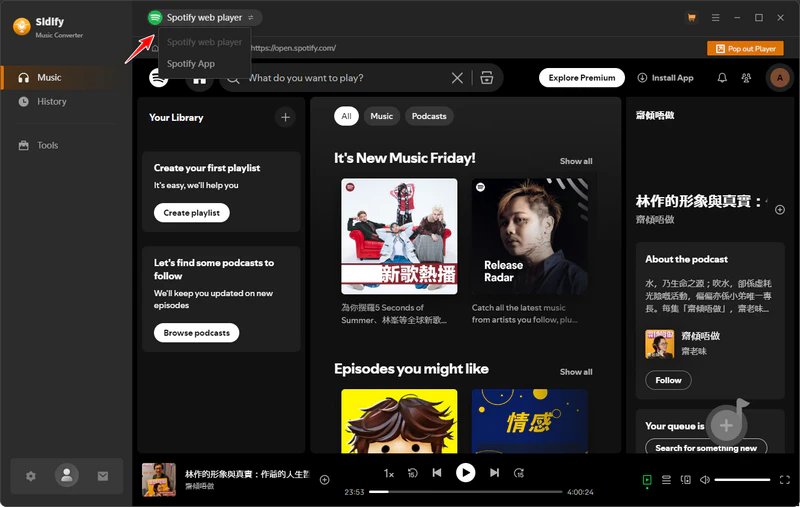
Step 1Launch Sidify Music Converter
Run Sidify Music Converter, you will access the modern interface of the program.
Step 2Import Music from Spotify to Sidify
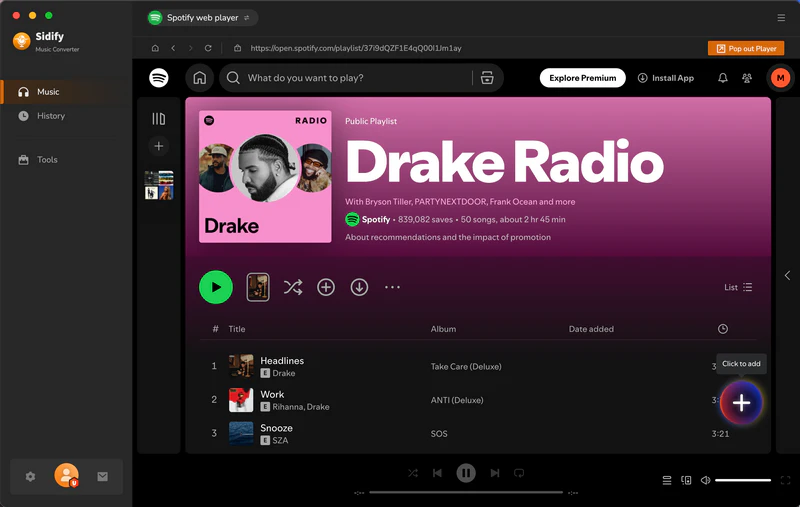
There are three simple ways to import your Spotify music. Sidify will analyze the URL and display all the songs in the selected playlist or album. You can uncheck any songs you don’t want to convert.
1. Drag and Drop: Open the Spotify app, find the track, playlist, or album you want to convert, and simply drag it into the Sidify interface.
2. Copy and Paste the URL: Right-click on the track, playlist, or album in Spotify, select “Share”, then “Copy Link”.
3. Click the “Add” button (usually a “+” icon)
Step 3Customize Output Settings
Click on the “Settings” and select output format. Choose where you want the converted files to be saved on your computer. You can either use the default folder or click “Browse” to select a different location.

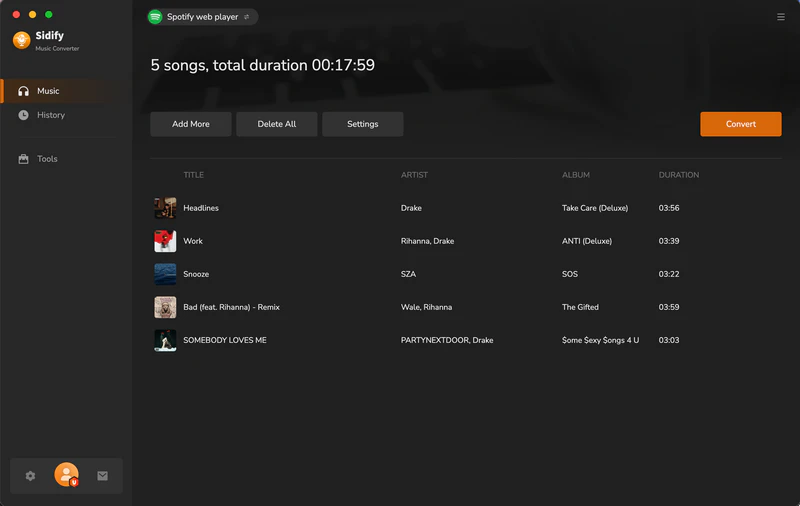
Step 4Convert Spotify Tracks to Local MP3s
Click the “Convert” button to start the conversion process.
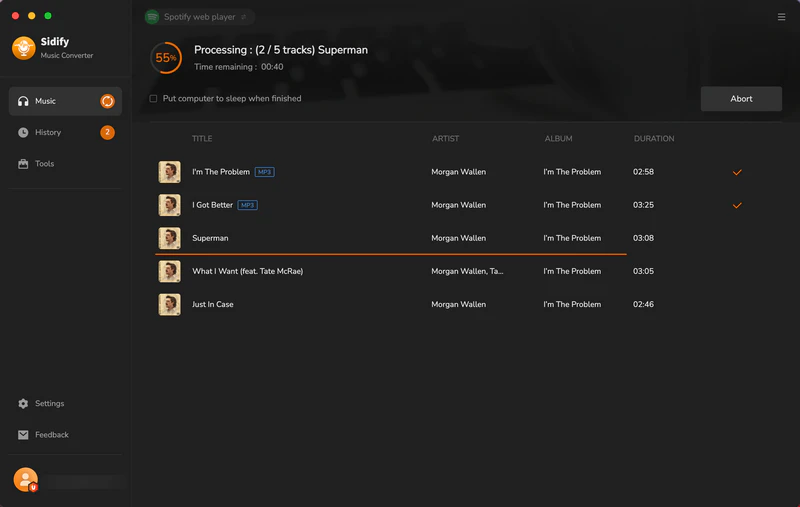
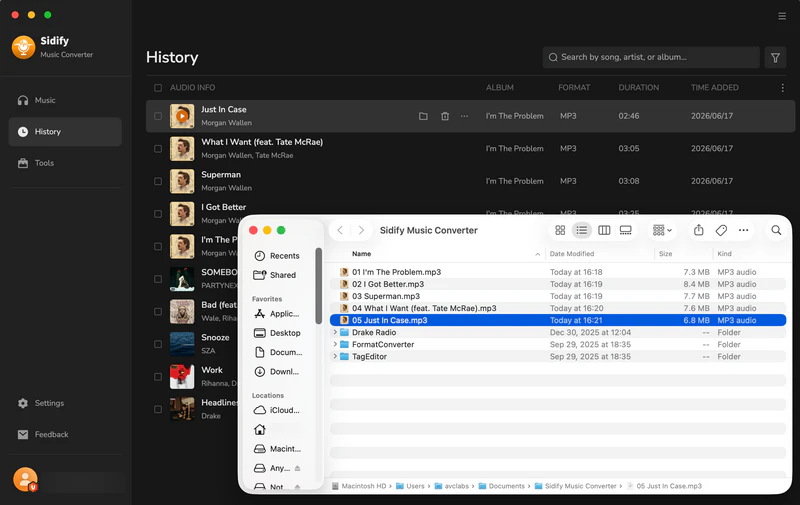
When the conversion is finished, click the “History” tab. They’ll be saved in the output folder you specified earlier.
Step 5Import to Your DJ Software
Open your preferred DJ app and add the converted MP3 files to your library.
Now that you know all the options for DJ software that works with Spotify, here’s how to pick the best one for you:
• Pro DJs Using Serato/Rekordbox/Djay Pro
Use the native Spotify integration. It’s the easiest way to access your library, but always have a backup of key tracks (via Sidify’s MP3 conversion) in case of WiFi issues.
• Casual Party Hosts
Stick to Spotify’s built-in DJ Mode. It’s free (with Premium) and requires no extra tools.
• Beginners Wanting AI Help
Try Mixonset for auto-mixing, or use Sidify to convert tracks and practice on free DJ software like Virtual DJ Home.
• No transfers
You can’t copy downloads to microSD cards, other devices (like tablets or car stereos), or cloud storage, losing your phone means losing your offline library.
At the end of the day, DJing is all about being flexible. You need to play the right track at the right time, no matter which tool you use. With Sidify, you can truly take control of your music. It doesn’t matter if you’re spinning at a festival or a house party, you’ll have the freedom to mix however you want, whenever you want!



