
Imagine you're stuck on a long subway ride with spotty service, relying on the downloaded Spotify playlist on your phone to get through the commute. But when you tap "Download," reality hits: those songs disappear the moment you lose WiFi. At times, you might wonder how to download from Spotify:
Does a way exist to download Spotify songs permanently for offline listening without a Premium account and without the downloads being removed later? Yes, you've come to the right place. This article introduces 5 best Spotify downloader apps to download Spotify music and playlists on Android, to save Spotify music as MP3 files, and even to enjoy your Spotify music offline on any player or device.
If you download Spotify music only for offline playback trips or, the official Spotify app is the fastest and simplest way to do it. This method requires a Spotify Premium subscription, which allows you to download songs, albums, and playlists directly to your Android device for offline playback. You need to maintain an active Premium subscription to keep access to the downloaded music.
Key Features:
Offline Playback: Download Spotify music on Android and listen without using mobile data.
Free Trial Offer: Offer Premium free trial to download spotify songs for free
Offline Playback: Download Spotify music on Android and listen without using mobile data.
Download Format: Encrypted (Ogg format)
Account Requirement: Premium only
1.
1.
1.
Steps to Download Spotify Music for Offline on Android🌟🌟🌟
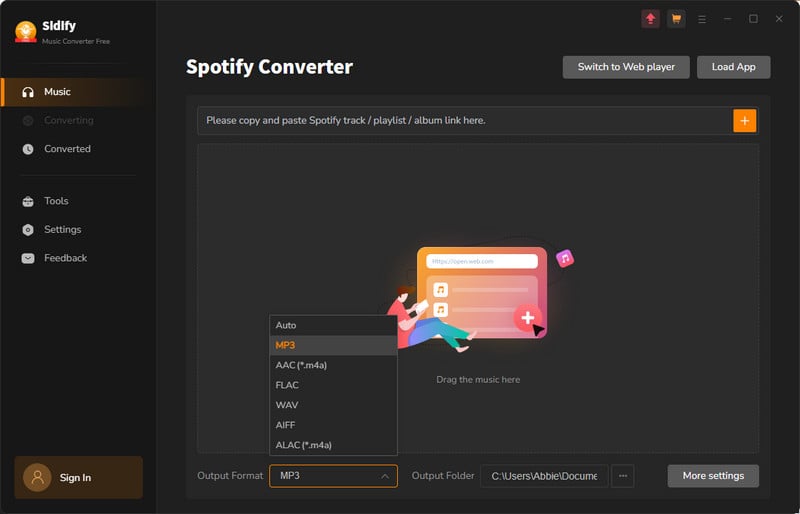
Non-premium Spotify users are likely to take advantage of multiple free Spotify music downloaders. After that, many opt for Sidify Android Spotify Music Downloader, a great Spotify alternative with download feature for both Spotify free and premium users. This Android downloader incorporates a built-in Spotify web player. Users can log in to Spotify account, search or browse for any song, album, playlist, or podcast, and add tracks to the download queue all in one place. You can also customize the Spotify downloading format like MP3, AAC, FLAC, AIFF, ALAC, WAV, quality, and destination folder, no switching between apps, no link copying. Sidify Downloader achieves high-quality downloads of Spotify music and playlists on your Android phone or tablet. Downloaded Spotify tracks are stored locally on Android folder, making it possible to play Spotify songs externally for other purposes.
Step 1Download and install the latest version of Sidify Spotify Music Converter and run it on your Android phone.
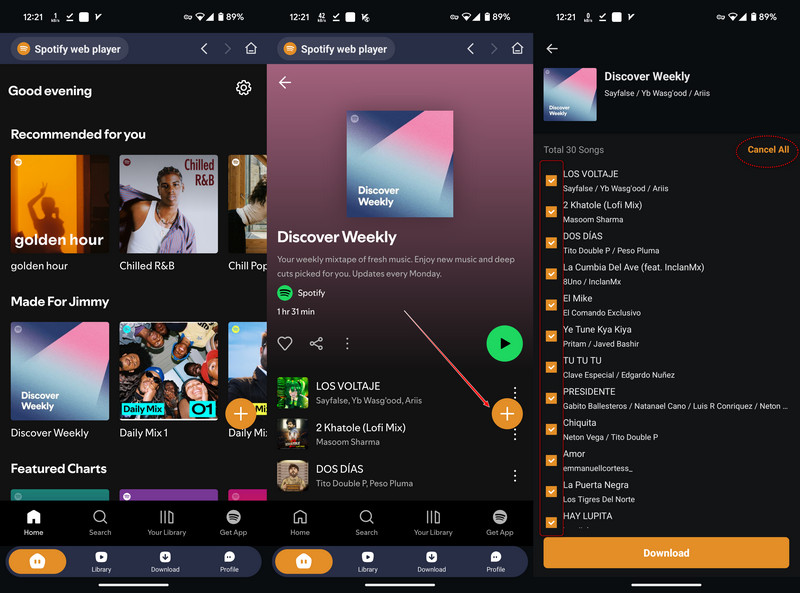
Step 2Log in to your Spotify account to access the full music library. Go to the playlist page you want, then tap the floating Add button on the right side. You’ll see a list of songs from that playlist, just tick the checkboxes next to the ones you want to download.
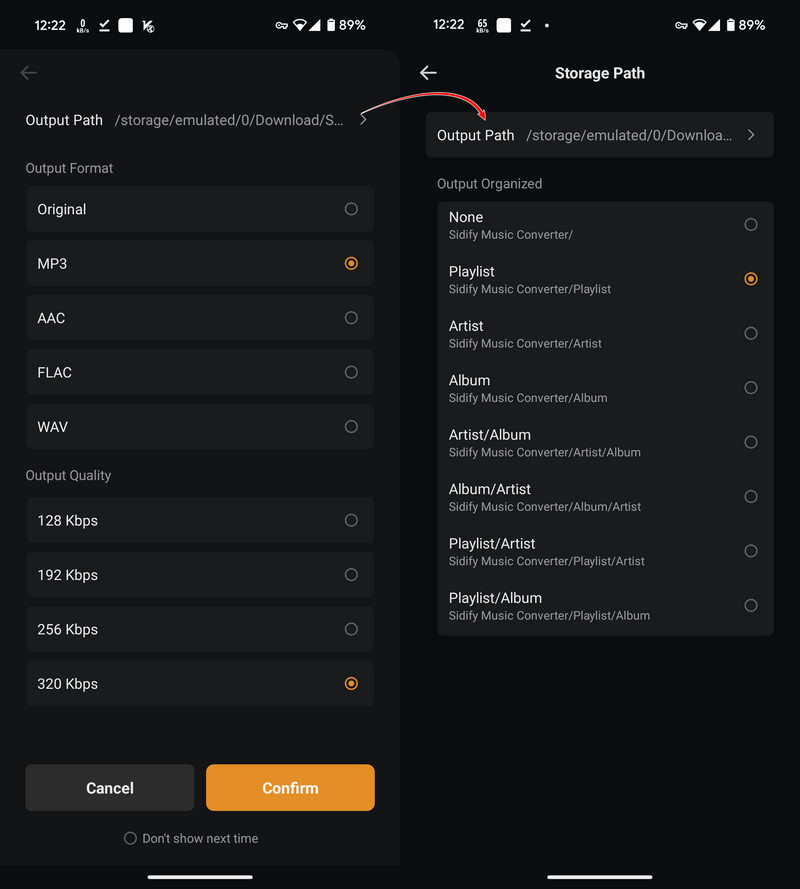
Step 3 Pick the format you want Spotify music to download (like MP3), and set the output path to choose where the Spotify music downloads will be saved on your Android device.
Step 4 Sidify will start converting your music. To check how it’s going, just tap the Download tab at the bottom.
Step 5 Once the progress is complete, go to the Library tab to find all your converted Spotify songs.
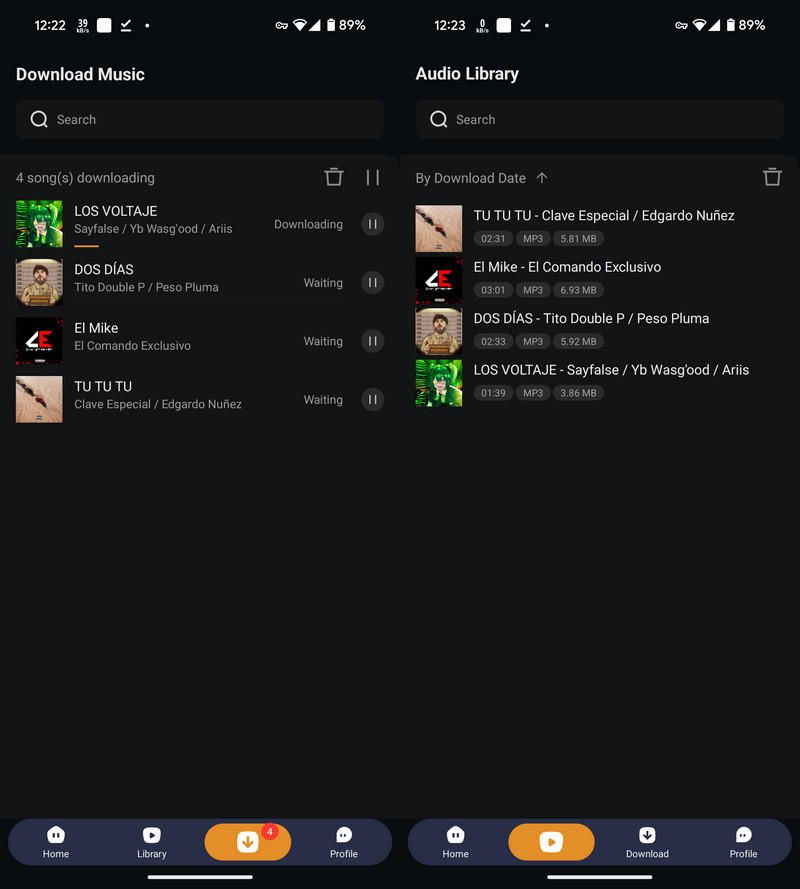
On Reddit, SpotiFlyer is one of the most frequently mentioned Spotify downloader APKs for Android. SpotiFlyer is open-source, ad-free, and doesn’t require any registration or login. The app features a simple, clean Spotify-inspired interface where you can browse or paste the URL of your favorite songs, albums, or playlists. All you need is a valid spotify track URL. Simply copy, paste, and save! With just a few taps, you can quickly download Spotify music to MP3 on Android at high quality (up to 320 kbps). SpotiFlyer also supports multiple music url from YouTube, YouTube Music, SoundCloud, Gaana, and Jio-Saavn.
The app sometimes doesn’t work well because it relies on finding songs from YouTube rather than downloading directly from Spotify. This can lead to lower quality and occasional download failures.
Step 1 Download the SpotiFlyer APK from the official website spotiflyer.app and install it on your Android device.
Step 2 Open the Spotify app (or any supported music app) and find the song, album, or playlist you want to download.
Step 3 Copy the Spotify track or playlist URL.
Step 4 Open SpotiFlyer and paste the copied link into the search bar.
Step 5 The app will fetch the song or playlist details and you tap the Download button next to each track to start downloading.
Step 6 Once downloaded, find your songs in the selected folder on your Android device and play them anytime, offline.
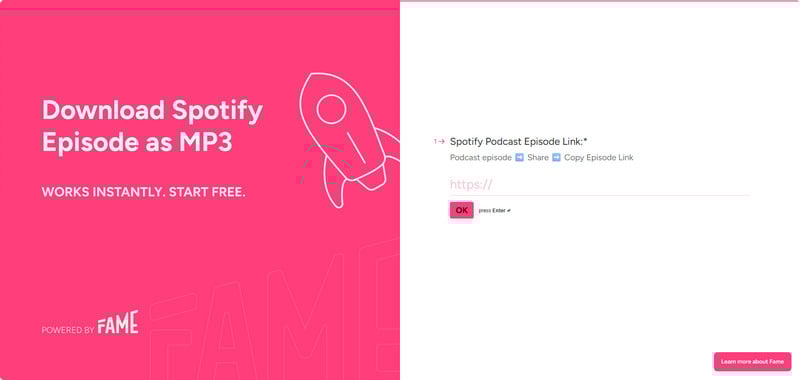
You’ve probably heard whispers about XManager, the mod that supposedly gives you Spotify Premium for free on Android phone. XManager unlocks Premium features (no ads, unlimited skips) but doesn't allow true Spotify to MP3 downloads. This modified client application provides an alternative approach for users primarily interested in premium streaming features rather than file extraction. But those "downloads"? They’re just temporary placeholders—DRM-locked and vanishing if you dare log out.
Step 1Go to xmanagerapp.com and download the xManager APK file. If your phone shows a warning, just tap “OK” to keep going.
Step 2Open the file you just downloaded. Tap “Continue to Install” when it asks. Then, tap “Setup” and turn on “Allow from this source” so xManager can install other apps.
Step 3 After the app is installed, open it. It will ask to use your phone’s storage. Tap “Setup”, then choose “Always Allow” when it pops up.
Step 4Tap the menu icon in the top right corner of xManager. Scroll down and turn on “Disable Rewarded Ads” so you don’t get annoying ads while using the app.
Step 5Look through the list of Spotify versions in xManager. Choose one and tap “Download”. The install might take some time. If it gets stuck, close it and try again with another version.
Step 6Once Spotify is installed, open it and log in with your account. It will ask to use Bluetooth — tap “Allow”, then “Allow” again.
Step 7If it doesn’t show Premium right away, go to your phone settings. Find Apps > Spotify, tap “Storage & cache”, then hit “Clear cache”. Go back and tap “Force stop”. Open Spotify again and check. You might have to do this more than once. When it works, you’ll be able to download songs to listen offline.
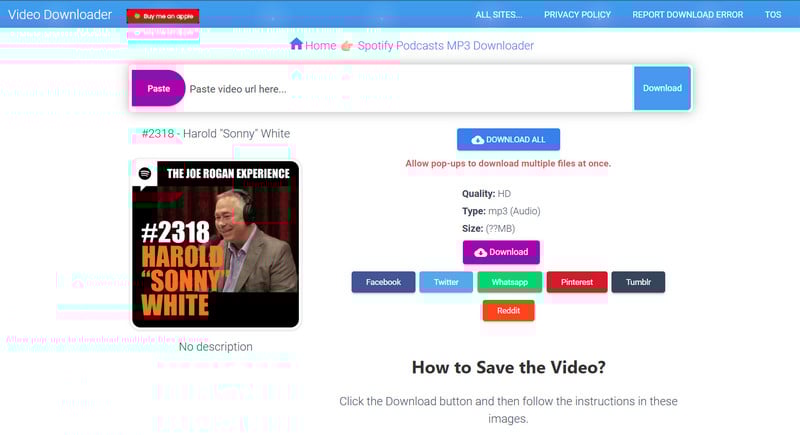
Don't doubt it that Telegram can work as a Spotify downloader on Android. Inside Telegram, there are automated helpers called bots — mini apps that perform specific tasks like downloading songs from Spotify. Telegram bots are automated accounts that can perform specific tasks inside the app. Spotify downloader bots leverage public APIs or third-party sources like YouTube to fetch music tracks based on your requests (e.g., song name, artist, or Spotify link). When you send a command or share a Spotify track link, the bot searches for the track online and sends you the audio file directly in the chat. Some Telegram bots can be used to download Spotify songs directly onto your Android phone.
🔍Also Read: Download Music from 14+ Telegram Spotify Bots on Android
Here are some highly recommended Spotify downloader bots for Android users.
Step 1 Open Telegram on your Android phone and log into Telegram with your phone nummber.
Step 2 Tap the search icon at the top and type in the name of the bot you want to use (like one from the list above).
Step 3 When you see the bot in the search results, tap it to open the chat window.
Step 4 Start the chat by typing or tapping /start. This lets the bot know you're ready to use it.
Step 5 Go to your Spotify app or the website and find the song you want to download. Tap "Share" and then choose "Copy Link."
Step 6 Go back to Telegram and paste the Spotify link into the bot’s chat. Send it as a message.
Step 7 Wait a moment — the bot will find the song and give you some options to choose from.
Step 8 Pick the version you want, then either tap the download link or use the three-dot menu (⋮) to save the song to your device.
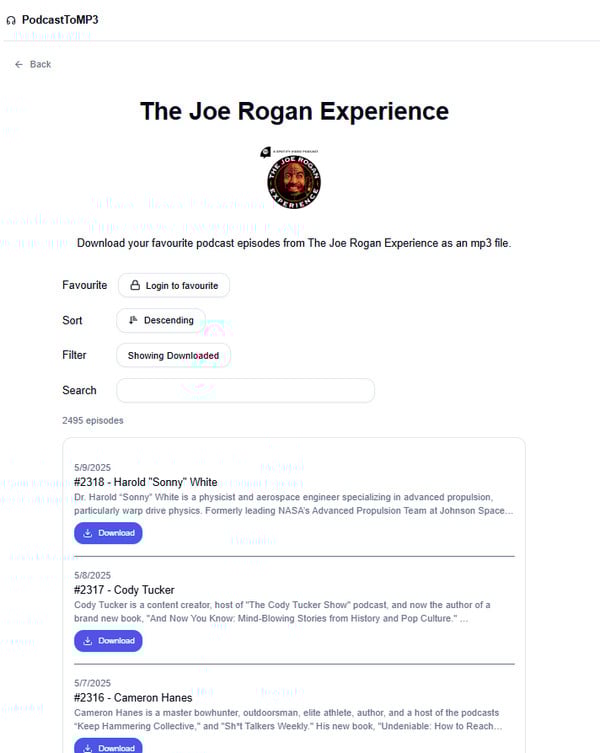
From Sidify downloader to SpotiFlyer, each Spotify podcast MP3 downloader we’ve mentioned works in a slightly different way. Some let you download Spotify video podcasts, while others focus on audio-only episodes. Depending on your device and needs, be it recording, converting, or just saving your favorite shows offline, you’ll find a way that fits. If you’re looking to download Spotify podcasts to MP3 for free, try Sidify tools that get the job done consistently.



