
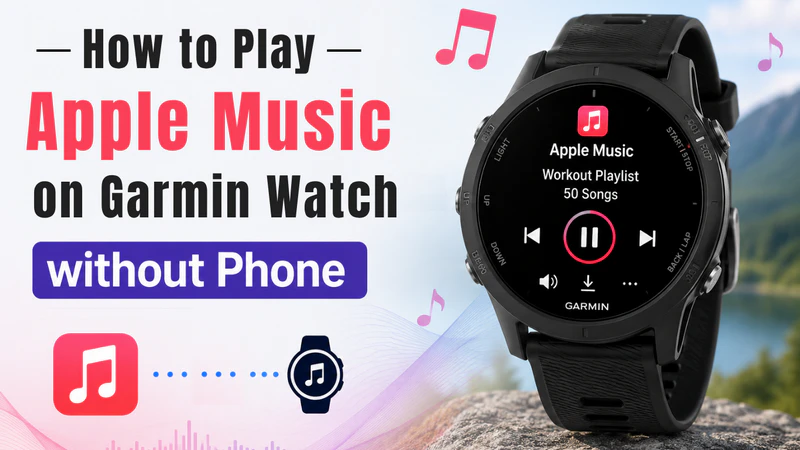
Many people would like to listen to Apple Music directly on their Garmin watch while running or working out. However, Garmin watches do not currently support Apple Music natively, meaning you cannot stream music directly from the device as you can with Spotify.
If you prefer not to carry your phone with you while working out, the only practical solution is to convert Apple Music tracks to MP3 format and transfer them to your Garmin watch for offline playback. This article provides a step-by-step guide on how to play Apple Music on a Garmin watch, so you can enjoy your music anytime, anywhere without your phone.
The short answer is: no.
Although Garmin smartwatches have continuously upgraded their music playback capabilities in recent years and now officially support major streaming platforms such as Spotify, Amazon Music, Deezer, and iHeartRadio, an official Apple Music app has yet to be released on Connect IQ store as of now.
The reason is simple: tracks downloaded from Apple Music are encrypted and saved in a restricted .m4p format that Garmin’s local media player cannot recognize or play. (Garmin only supports standard, open audio formats like MP3, M4A, and WAV.) Consequently, you cannot stream or transfer Apple Music directly to your watch. To achieve a phone-free workout, you'll need to convert the songs first. Let’s look at the best way to do this in Part 2.
Since Garmin watches cannot directly play Apple Music, the only viable method for playing Apple Music on your Garmin watch without using a phone is to first convert the Apple Music tracks into a format supported by Garmin and then import them to the watch for offline playback. The specific steps are as follows:
To convert Apple Music to an open format, you will need to utilize a professional Apple Music converter. Among the available options, Sidify Apple Music Converter stands out as an excellent choice.
Sidify Apple Music Converter is a professional Apple Music download tool that converts songs, albums, playlists, and even your entire Apple Music library into MP3, AAC, FLAC, WAV, AIFF, or ALAC formats with original audio quality. It also supports batch downloading music at 10× the speed and retains full ID3 tag information, enabling you to conveniently import your music to your Garmin watch for offline playback.
Sidify Apple Music Converter
 Download and remove the encrypted protection on Apple Music.Convert Apple Music to MP3, AAC, FLAC, WAV, AIFF, or ALAC.Preserve the lossless audio quality and retain ID3 tags.Burn Apple Music to CD and edit ID3 tags.Fully support Windows 11 & macOS Tahoe 26.
If you want a tool to convert any streaming music (including Spotify, Apple Music, Amazon Music, Tidal, Deezer, YouTube, YouTube Music, SoundCloud, DailyMotion …) to MP3, Sidify All-In-One is the go-to choice.
Step 1Open Sidify Apple Music Converter
Install and launch Sidify Apple Music Converter on your computer.
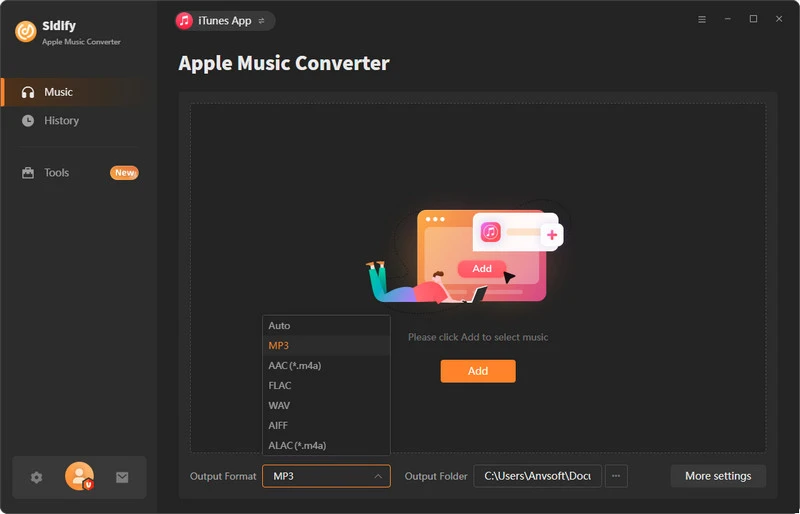
Step 2Customize Output Format
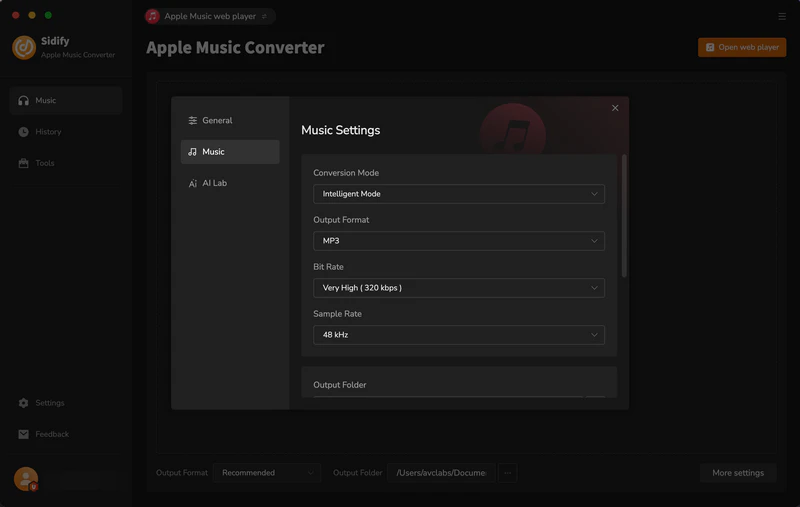
Go to the music settings page, select MP3 as the output format, and you can also customize the output filename.
Step 3 Add songs to Sidify
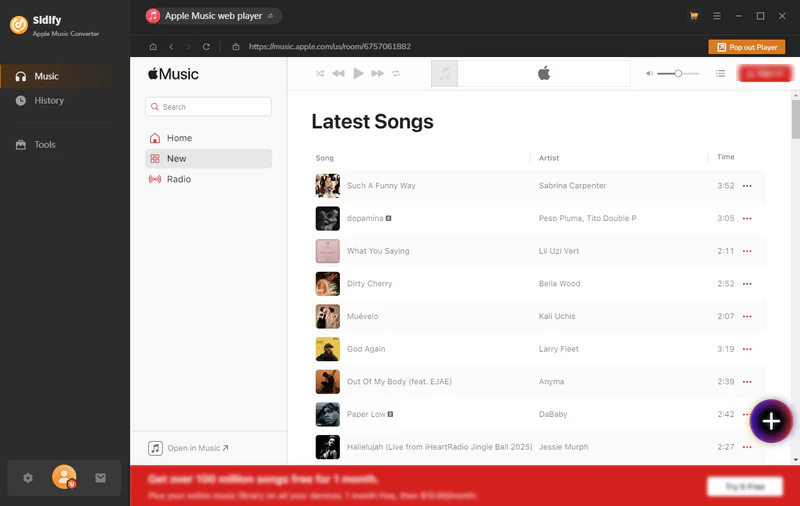
Find the songs, albums, or playlists you want to save, and click the "+" button to add them to Sidify.
Step 4 Start to Convert Apple Music
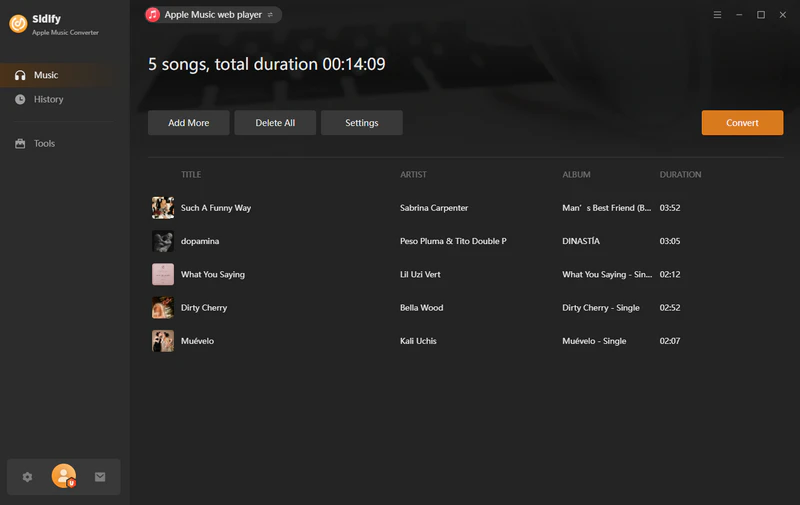
Click the Convert button, and Sidify will immediately start converting the Apple Music to MP3s at high speed.
Step 5 Check downloaded MP3 files
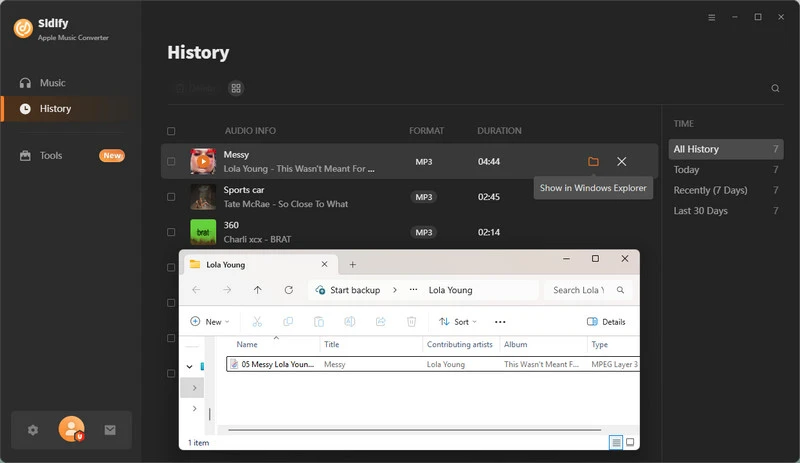
After the download is complete, go to the "History" section to view the downloaded Apple Music files.
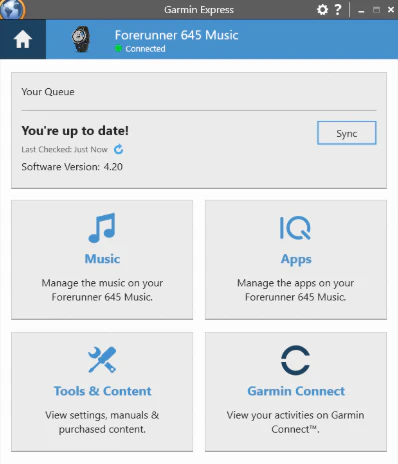
Once the conversion is complete, you can easily sync them to your watch using the official Garmin Express desktop software.
Step 1Visit https://www.garmin.com/express and install Garmin Express on your computer.
Step 2Click "Add a Device" and follow the on-screen prompts to identify your watch.
Step 3Enter into "Music" page, and check the songs, albums, or playlists you want to listen to from the list.
Step 4Click "Send to Device" and wait for the transfer to complete.
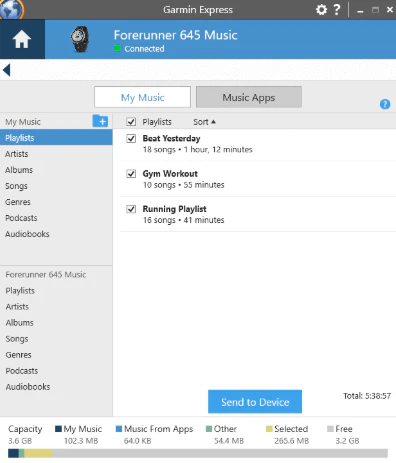
Now, simply connect your Bluetooth headphones to your Garmin watch, open the built-in music player, and enjoy your Apple Music playlists without your phone!
In addition to converting Apple Music, if you are interested in other methods for importing music to your Garmin watch, here are several alternative options natively supported by Garmin:
Garmin has partnered with several leading music streaming services, allowing users to enjoy music directly from their watches. If you have a premium subscription to any of the supported platforms below, simply download the corresponding app from the Garmin Connect IQ Store and sync your playlists for offline listening on your Garmin watch.
Songs subscribed to via Apple Music are protected by DRM encryption and cannot be played directly on a Garmin watch. However, if you have previously purchased individual digital singles or albums from the iTunes Store, these purchased music files are in an unencrypted AAC format (.m4a).
You can download these purchased songs directly to your computer and then sync them to your Garmin watch using Garmin Express, allowing you to play them immediately without any conversion.
Although Garmin devices cannot natively run Apple Music, you don't have to give up your favorite playlists. Simply use Sidify Apple Music Converter to convert your music to MP3 format, then easily sync it via Garmin Express to enjoy a workout experience completely free from your phone.
 850,000+ Downloads
850,000+ Downloads
850,000+ Downloads



