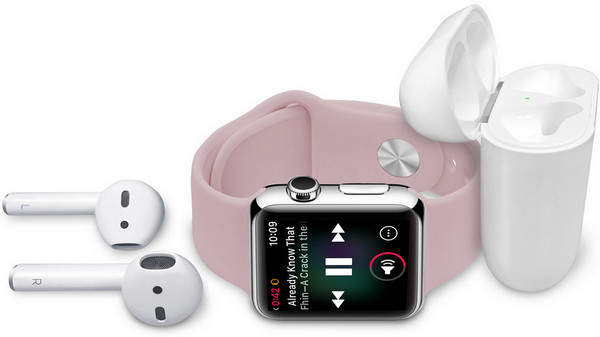
Heading out for a run with just the Apple Watch and no iPhone, yet still having access to all favorite playlists, is easy to set up. This guide covers how to stream and download music directly to the Apple Watch, and provides smart ways to preserve the music library, even after canceling an Apple Music subscription. Methods include how to download Apple Music to Apple Watch and convert Apple Music to MP3 for offline listening.
Part 1: Play Apple Music on Apple Watch without iPhone
Part 2: Keep Apple Music on Apple Watch Active after Unsubscription
Apple Watch has 2GB of local music storage to let users sync albums or playlists purchased from iTunes or Apple Music, so if you have the purchased iTunes music, or if you are subscribers of Apple Music streaming service, you can easily sync these music or playlist to Apple Watch for offline playback without iPhone. Here just look at the simple steps.
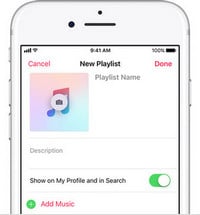
Step 1 Create a new playlist like workout if you like.
You can open your Apple Music app on iPhone to create a new playlist which you want to sync to Apple Watch.
Step 2 Sync Apple Music playlists to Apple Watch.
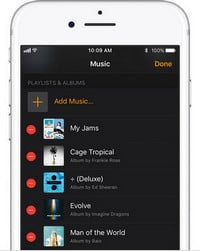
Two things need to be done before sync - Bluetooth needs to be turned on your iPhone, and your Apple Watch needs to be on charge. Then open the Apple Watch app on iPhone, tap My Watch tab and tap Music > Add Music to choose the Apple Music albums and playlists to sync.
Step 3 Pair Bluetooth headphones or speakers to Apple Watch.
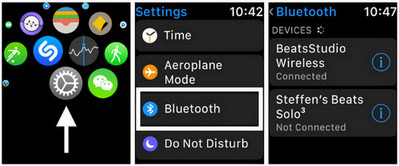
Put Bluetooth headphones or speakers and your Apple Watch into pairing mode and then grab your Watch and go to Settings > Bluetooth. When your headphones are shown under Devices, you can tap on your headphones to pair them.
Step 4 Start to play Apple Music.
After the Apple Music playlist is synced and your headphones paired, you can open the Music app on Apple Watch and swipe down to show the menu which lets you choose a music source and tap the icon for the Apple Watch. Next, scroll down and tap playlists and you'll see one playlist listed under the header On My Apple Watch, just tap it to let the music play.
Apple Music subscription enables users to play and download music files for offline enjoying and stream the purchased music to multiple devices like Apple Watch, Apple TV, etc, but after the cancelation of Apple Music subscription, you are not accessible to the Apple Music albums or playlists you added due to protection, let alone stream them on Apple Watch.
So how to keep Apple Music albums or playlists which you synced on Apple Watch active after canceling the subscription? You can turn to Sidify Apple Music Converter to help you convert Apple Music tracks or playlists to plain formats like MP3, AAC, WAV, FLAC or AIFF, thus you can add these Apple Music songs to your iPhone Apple Music app and sync them to Apple Watch for offline listening without worrying about the cancelation of subscription.
Sidify Apple Music Converter
 Convert Apple Music and iTunes M4P music to MP3, AAC, FLAC, WAV, AIFF or ALAC;Download iTunes M4A, M4B & Audible AA, AAX audiobooks;Preserve 100% lossless sound quality after conversion;Fast Conversion Speed; Keep ID3 tags and metadata.
 850,000+ Downloads
850,000+ Downloads
850,000+ Downloads

If you want a tool to convert any streaming music (including Spotify, Apple Music, Amazon Music, Tidal, Deezer, YouTube, YouTube Music, SoundCloud, DailyMotion …) to MP3, Sidify All-In-One is the go-to choice.
The following part is a tutorial on how to convert Apple Music albums or playlists to plain formats as MP3, WAV, AAC, FLAC or AIFF, and sync the converted Apple Music to Apple Watch for listening.
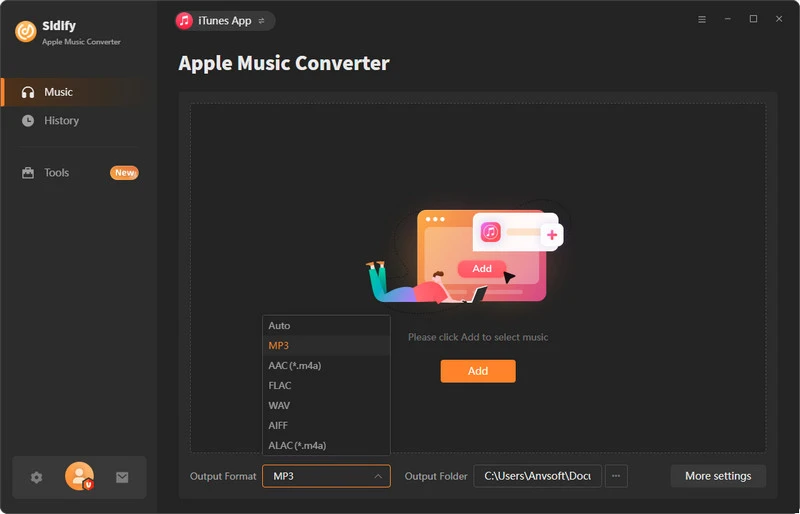
Step 1Launch Sidify Apple Music Converter
Run Sidify Apple Music Converter, you will access the modern interface of the program.
Step 2Add Apple Music Tracks to Sidify.
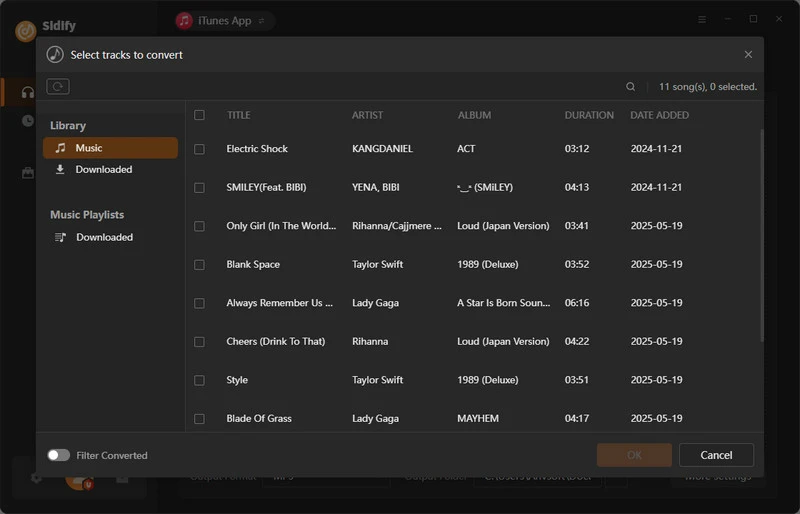
Drag and drop songs, an album or a playlist from Apple Muisc to Sidify. Or you can click the "Add" button on the interface and copy & paste the URL of your Apple Muisc to the program. Then click the "OK" button to import them to Sidify.
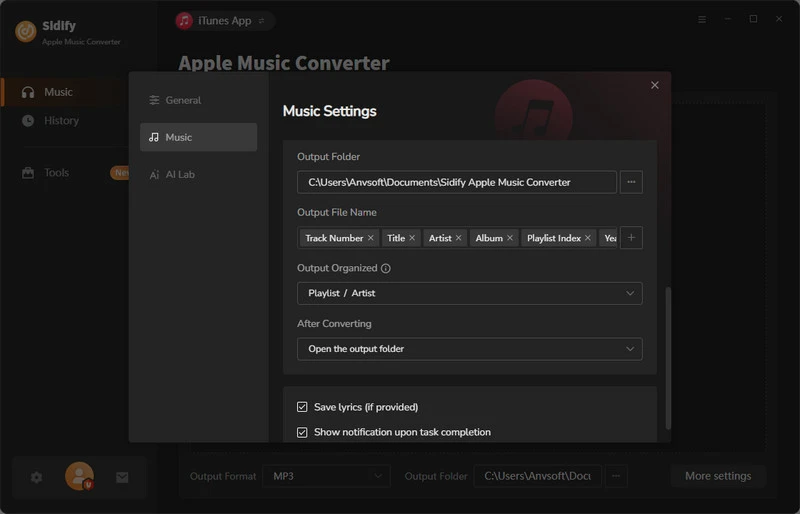
Step 3 Choose Output Format and Customize Output Path.
Click the "Settings" icon in the left panel. Here you can choose the output format (MP3/AAC/WAV/FLAC/AIFF/ALAC), the output quality and the output path as well. Besides, you can customize how you'd like to name and sort out the converted files.
Step 4 Convert Apple Music to MP3.
Click the "Convert" button and Sidify would immediately start converting the Apple Music to MP3s.
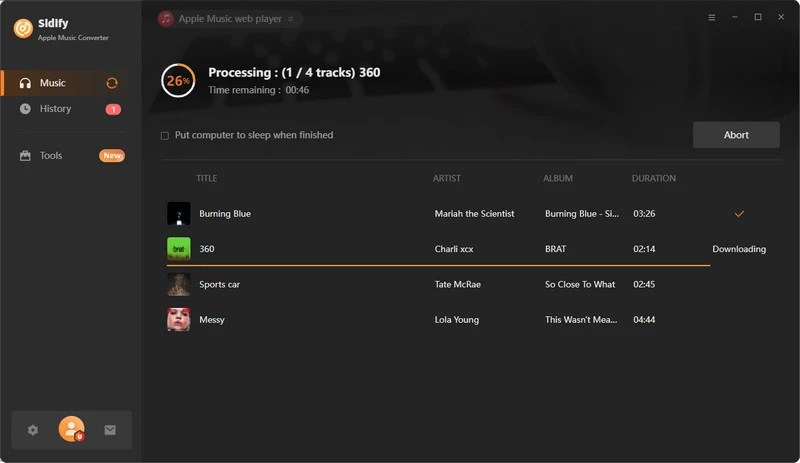
Step 5 Find the MP3 downloads on the Local Drive.
Once the conversion is done, click the "Converted" tab and you can check all the Apple Music that have been converted successfully. Go to the output folder set in the previous step, you'll find the downloaded MP3s.
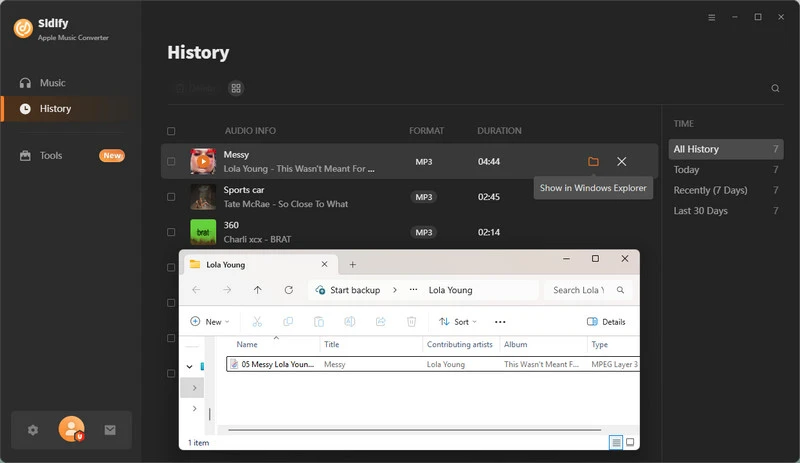
Step 6 Sync the Converted Apple Music from Computer to iPhone.
The converted Apple Music will be stored on your computer file folder, so you can add the converted music to iTunes and sync them to iPhone with the same Apple ID or USB cable.
Finally, you can follow the steps on part 1 to sync and play the converted Apple Music playlists on Apple Watch.
Note: The trial version of Sidify Apple Music converter has 1-minute conversion limit. If you want to unlock the time limitation, you can purchase the full version of Sidify.
What You Will Need
They're Also Downloading

You May Be Interested In
Hot Tutorials
Topics
Tips and Tricks
What We Guarantee

Money Back Guarantee
We offer money back guarantee on all products

Secure Shopping
Personal information protected by SSL Technology

100% Clean and Safe
100% clean programs - All softwares are virus & plugin free