 Sidify YouTube Music Converter


YouTube Music to WAV: How to Download Songs & Playlists (Desktop + Online)
YouTube Music doesn’t offer WAV downloads — but there are ways around it. Learn how to convert songs and playlists to WAV with step-by-step desktop and online methods.

YouTube Music don’t provide a native option to download songs or playlists directly as WAV files. However, with the right YouTube Music to WAV converter, you can easily save your favorite tracks in high-quality audio format.
In this guide, we’ll show you how to convert YouTube Music to WAV step by step with a professional converter, along with a free online backup method. You’ll also learn how to keep original audio quality and preserve ID3 tags for better music management.

Can You Download YouTube Music as WAV?
YouTube Music does not provide an option to download songs or playlists in WAV format directly. It only supports online playback and in-app offline caching, rather than allowing users to download high-quality audio files.
However, many users look for WAV files because they want higher-quality and more flexible control over their music library. Unlike compressed formats, WAV provides lossless audio quality and works well for offline listening, long-term music collection, DJ use, and compatibility across different devices and media players. For users who prefer to keep their music in a stable, high-fidelity format, WAV is often a preferred choice.
Next, we will introduce two practical methods to help you obtain YouTube Music tracks in WAV format and manage your music more effectively.
2 Ways to Convert YouTube Music to WAV
If you want to convert YouTube Music to WAV, a professional tool like Sidify YouTube Music Converter can help you do it easily and efficiently. It supports six output formats, including WAV, MP3, FLAC, AAC, ALAC, and AIFF. It preserves the original audio quality during conversion and retains full ID3 tags, such as title, artist, album, and genre, making it easier to manage your music library.
In addition to converting single tracks, it also supports batch conversion of entire playlists, so you can download and convert multiple songs at once without repeating the process manually. This makes it especially useful for users who want to build or back up a complete music collection in a high-quality audio format.
In addition to professional desktop software, this guide offers a free online tool as a quick alternative for basic conversion needs.
Method 1: Convert YouTube Music to WAV via Desktop Software
The tool we used is the Sidify YouTube Music Converter, a professional desktop tool that makes it easy to convert YouTube Music to WAV files. Next, we will walk you through the steps for using this tool to convert both a single YouTube Music track and an entire playlist into WAV format.
How to Convert a Single YouTube Music Track to WAV (Step-by-Step)
-
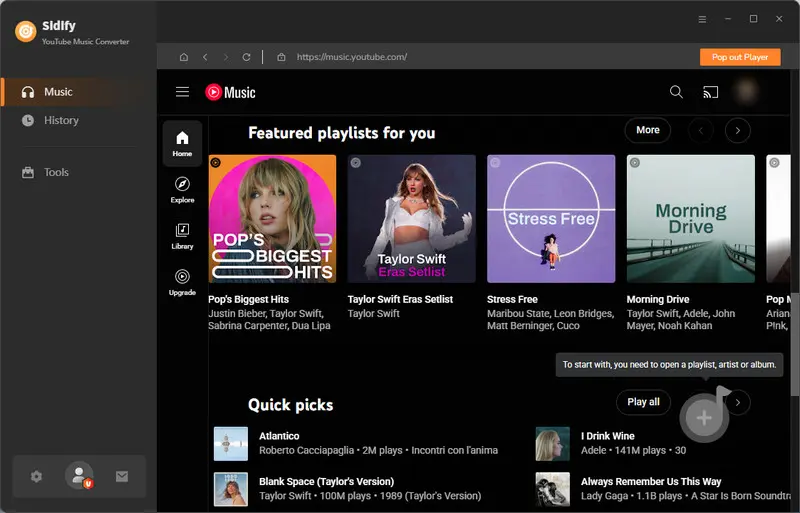
Step 1Run Sidify YouTube Music Converter on your computer
Launch the app and log in to your YouTube Music account.
-
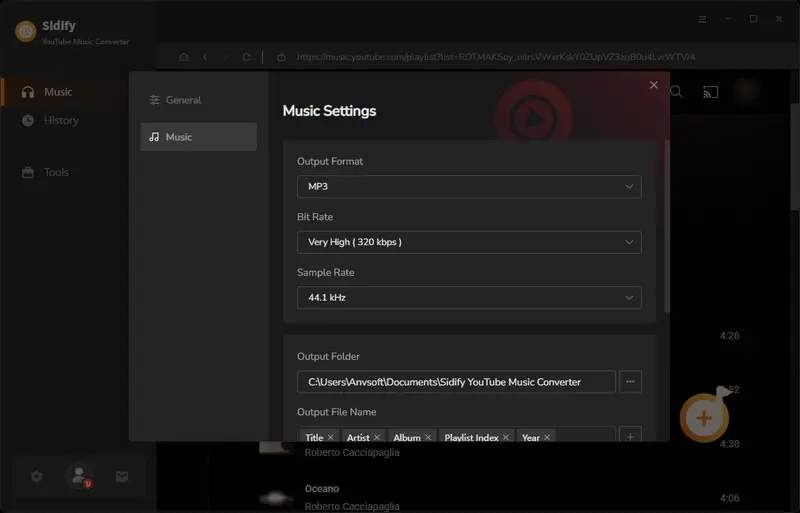
Step 2Format Settings
Go to the “Settings” module to set up the output format as WAV. Also, set up the bit rate, sample rate, and output folder.
-
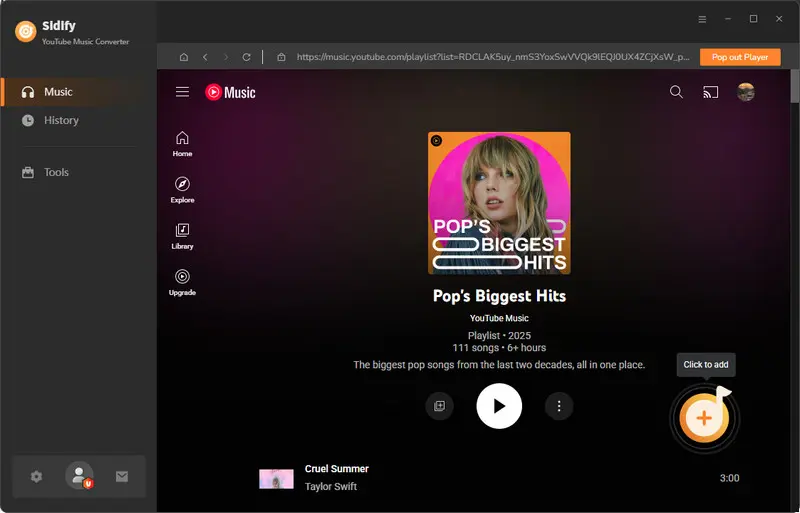
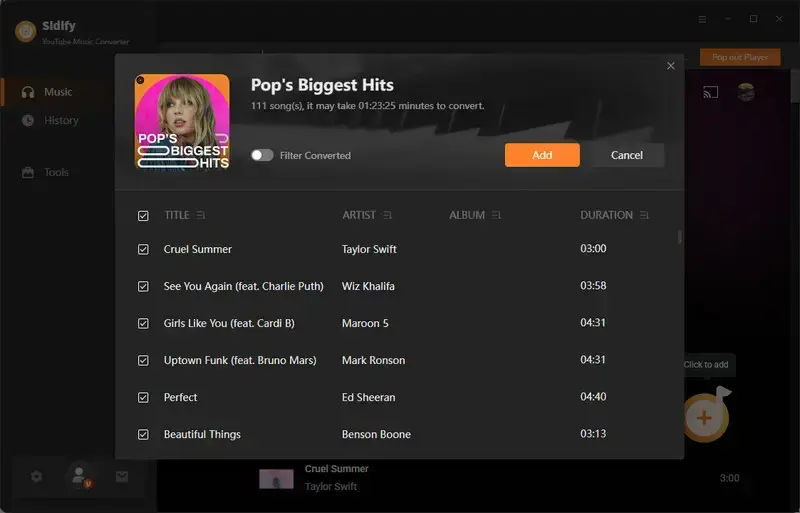
Step 3Add Songs
Find songs in the music library and tap the “Click to Add” button. Tick off the music you want to convert.
-
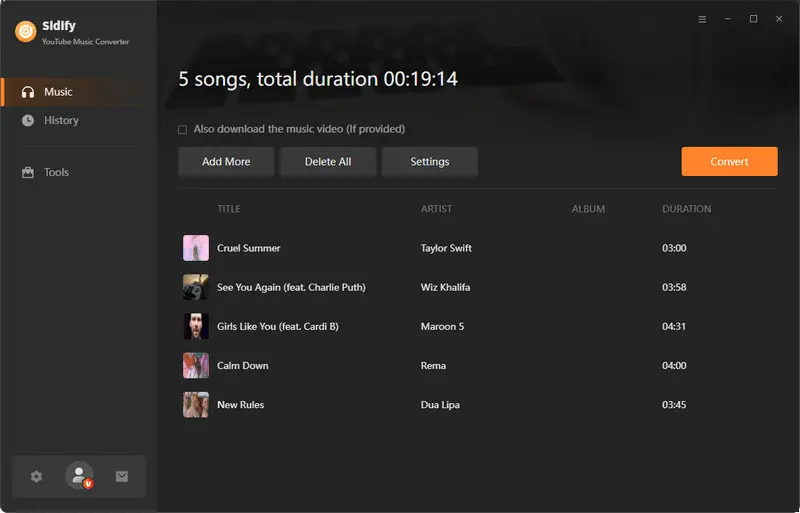
Step 4Convert Tracks to WAV Format
Click on “Convert” to download YouTube Music tracks
-
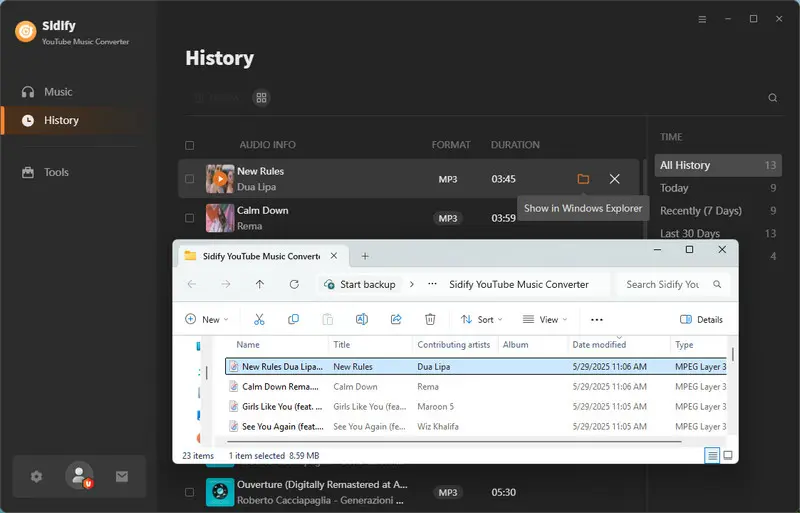
Step 5Check Downloaded WAV Tracks
After the conversion is complete, click “History” to view your finished YouTube WAV files. Then, click the folder icon next to the converted tracks to quickly locate the WAV files stored on your computer. Now you can enjoy your music anywhere.
How to Convert an Entire YouTube Music Playlist to WAV in Batch
Sidify also makes it easy to convert entire YouTube Music playlists to WAV with its batch download feature. You don’t need to process each track individually; simply import the playlist, and the software will handle all songs in one go.It also keeps everything organized by preserving the original playlist order and ID3 tags.Below are the detailed steps to get started.
-
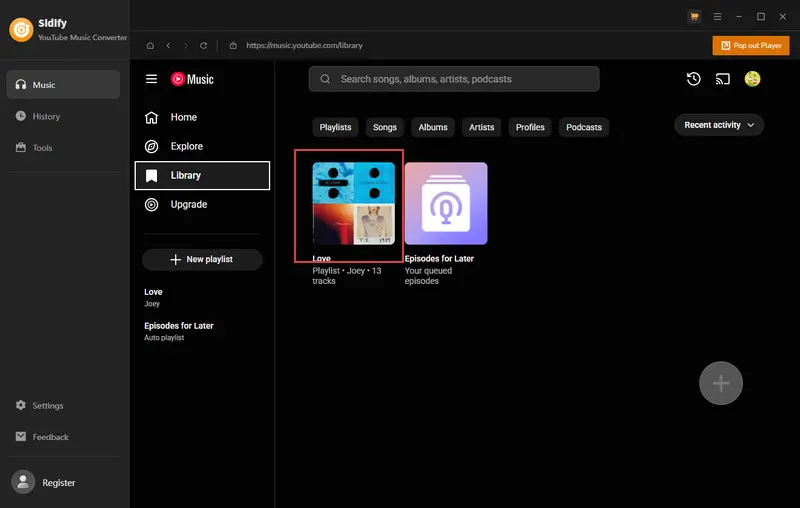
Step 1Run the Software
Run the software, then open the Library in YouTube Music, and select the YouTube Music playlist you want to download.
-
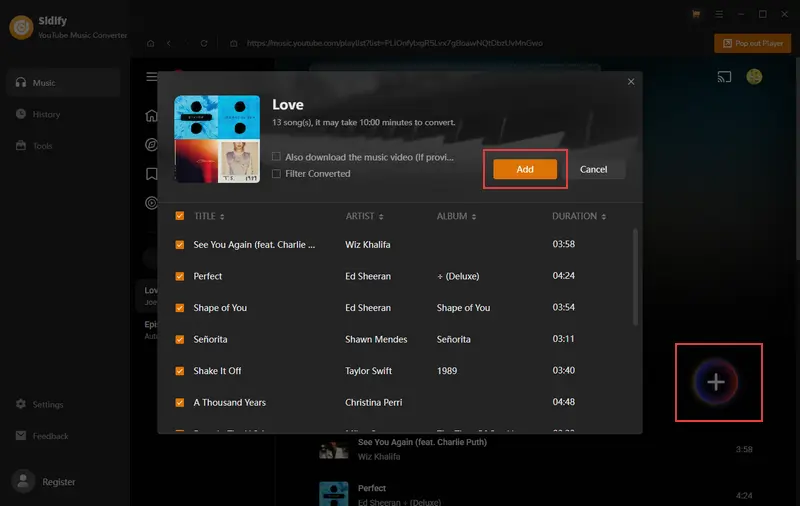
Step 2Add Playlist to Sidify
Click the “+” button in the bottom-right corner, and the software will automatically parse the song links in your playlist. Then click “Add” to add the music.
-
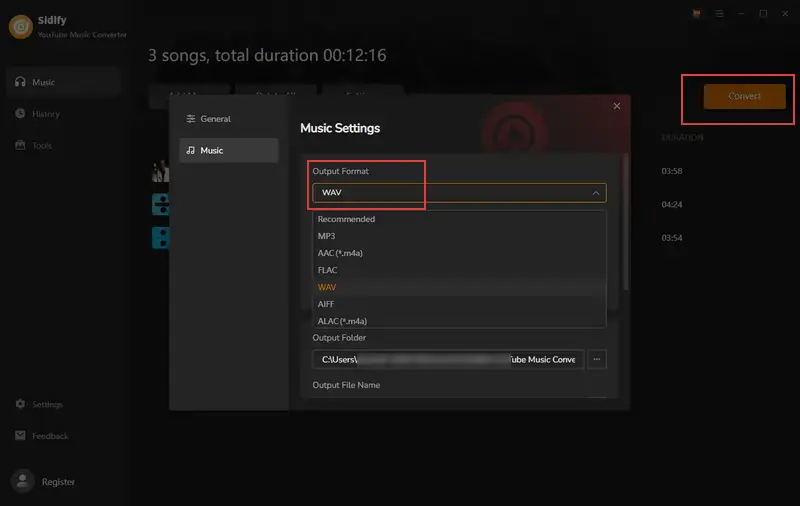
Step 3Output Settings
Set the output format as WAV and bit rate, choose the folder where you want to save, then click “Convert” to start.
-
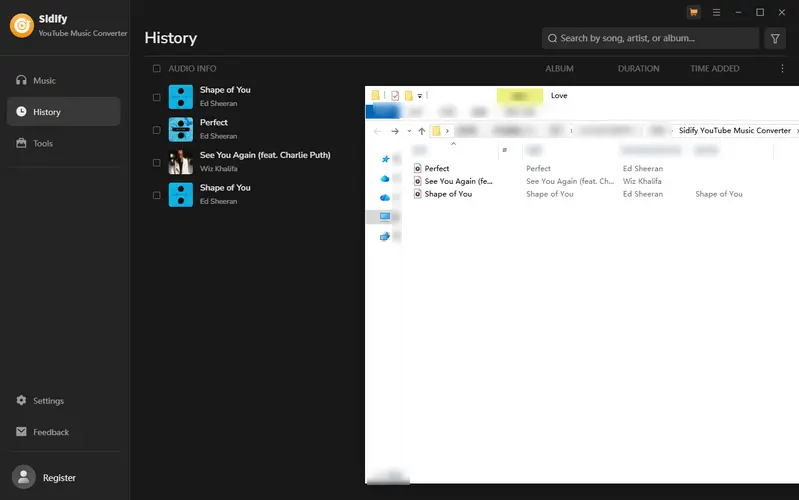
Step 4Check your Downloaded Playlist
Once the download finishes, click the “History” icon to see your downloaded songs.
Method 2: Convert YouTube Music to WAV with a Free Online Converter
If you’re looking for a quicker, free option, you can also use an online tool like TOOLESH to convert YouTube Music to WAV directly in your browser. However, free online websites may pose risks, such as unstable performance, lower audio quality, or security concerns from third-party websites.
-
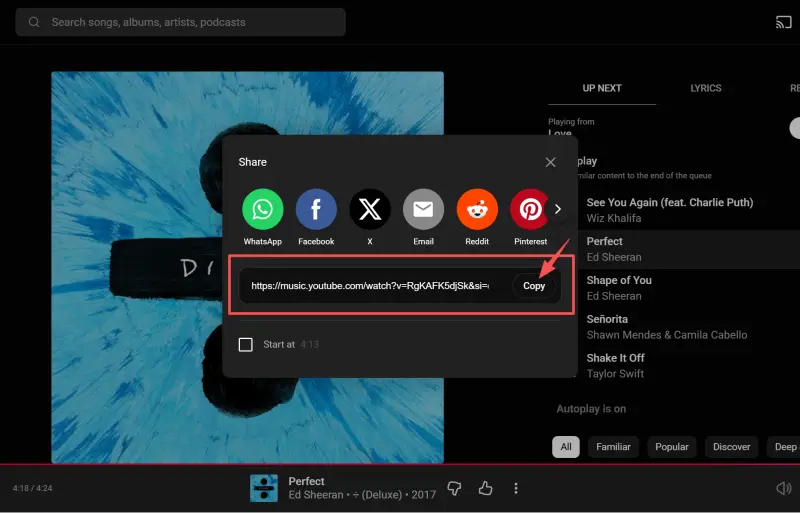
Step 1Log in to your YouTube Music Account
Log in to your YouTube Music account, click on the song you want to download, and copy the share link.
-
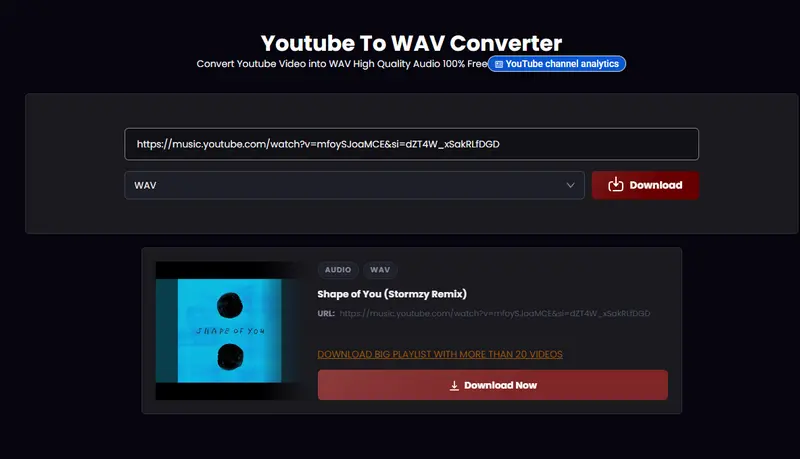
Step 2Paste the Link into TOOLESH
Paste the link into the search box of the website, choose the WAV format and then click “Download”.
-
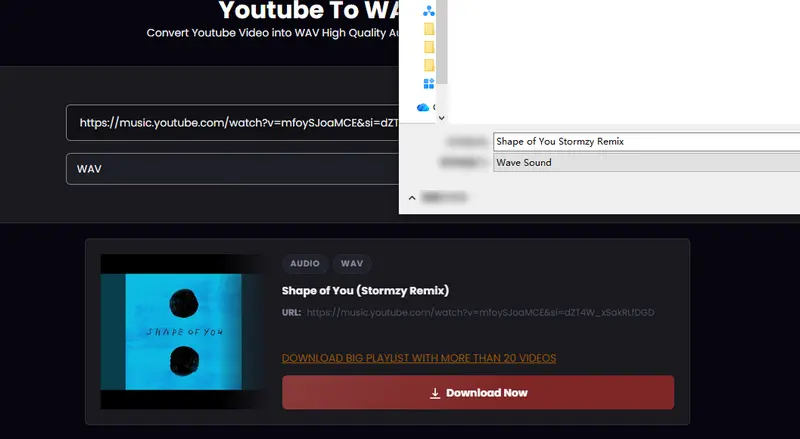
Step 3Download Songs
After processing, click “Download Now” to save your song.
-
 Free
Free
-
Easy to use
-
No installation required
-
 Long processing time
-
Ads pop up
-
No batch download
-
Poor audio quality
-
Unstable website
 Note
Note
These online tools are free and convenient, but they might pose security risks. Be cautious of unfamiliar links.
Desktop Software vs Online Converter: Which One Should You Choose?
| Features | Sidify YouTube Music Converter | TOOLESH |
|---|---|---|
| Type | Desktop | Online |
| Output Formats | WAV / MP3 / FLAC / AAC / ALAC / AIFF | WAV / MP3 / FLAC / AAC |
| Highest Quality | 320kbps, Lossless, HiFi, HD, Ultra HD | 256 kbps |
| Batch Download | Yes | No |
| Ad-Free | Yes | No |
| ID3 Tags | Title, Artist, Album, Track Number, Year | Title |
| Offer Type | Freemium | Free |
| Recommendation | ⭐⭐⭐⭐⭐ | ⭐⭐ |
Sidify YouTube Music Converter is ideal for users seeking a professional, stable, and high-quality solution. It is especially suitable for users who need batch downloading, lossless audio output, and full ID3 tag management, such as DJs, content creators, and users with large music libraries.
On the other hand, Toolesh is better suited for users who only need occasional, simple, and free conversions. It works well for single-track downloads, but it may not meet the needs of users who require higher audio quality or advanced features.
Ultimately, select the most suitable tool based on your different needs.
Final Words
This article introduces two methods for converting YouTube Music to WAV format. It also explains how to use Sidify to convert an entire playlist to WAV. You can choose the most suitable method based on your own needs.
Frequently Asked Questions
How do I convert a YouTube Music file to WAV?
YouTube Music does not offer a direct download option for audio files like WAV. To convert a YouTube Music file to WAV, you will need to use a conversion tool. Simply copy the song link, paste it into the tool, choose WAV as the output format, and start the conversion process.
What’s the difference between WAV and MP3 for YouTube Music downloads?
WAV is a lossless audio format that preserves original sound quality, while MP3 is a compressed format with smaller file size but slightly reduced audio quality. WAV is better for high-quality listening or editing, while MP3 is more storage-friendly.
Can I convert a whole YouTube Music playlist to WAV?
YouTube Music does not provide a direct download option for playlists. However, you can achieve this by using a conversion tool to process and convert the entire playlist into WAV format.
What is the best YouTube Music to WAV converter?
The best converter depends on your needs, but desktop tools like Sidify YouTube Music Converter are widely recommended for their stable performance, batch conversion support, and lossless audio output.
Is it legal to convert YouTube Music to WAV?
The legality depends on how you use the content and the copyright regulations in your region. In most cases, converting for personal use may be allowed, but redistribution or commercial use without permission is not permitted.
 Sidify YouTube Music Converter
Batch download and convert YouTube Music to MP3 in original quality — one click to save your full playlist for offline listening. We don’t just convert — we perfect every track.


Sidify YouTube Music Converter
The most reliable YouTube to MP3 converter